

Combine AI requests and calendar review in Teetrack
By Tristan Doehl · · Updated
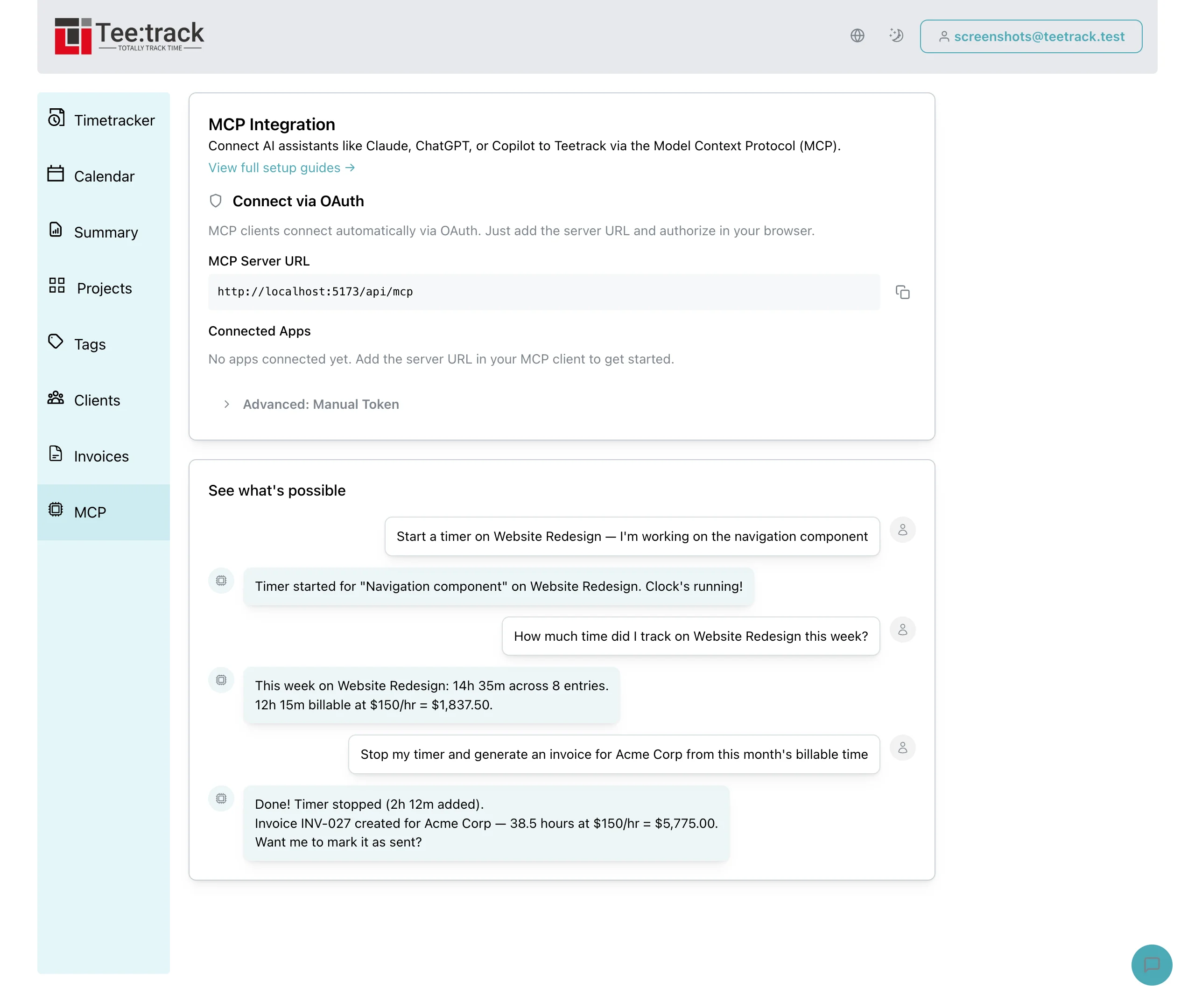
An assistant can turn a request into a time entry, while a calendar can supply details of scheduled work. Teetrack supports both through MCP tools and calendar integration. Combining them is useful when you keep a clear review step between suggested work and the records used for reporting.
Give the assistant a defined role
Teetrack’s MCP server exposes operations such as starting timers, logging completed work, and querying summaries. MCP, or Model Context Protocol, lets a compatible assistant call those operations. The assistant interprets the request; Teetrack stores the resulting records.
“Log two hours on Acme redesign” still needs a date, an appropriate project match, and enough timing information for the intended entry. The MCP introduction explains that connection and its limits.
Connect and verify one assistant
Choose a client that supports Teetrack’s hosted endpoint, https://teetrack.it/api/mcp, and complete its authentication process. Available client features and workspace permissions vary, so check the instructions for the application you use.
The Claude walkthrough and ChatGPT and Gemini article cover practical starting points. The MCP guide hub also includes GitHub Copilot. Begin by listing projects and checking the result against the account before creating work records.
Let the calendar prepare scheduled work
Calendar integration retrieves events from supported Google, Outlook, or iCal connections. Automatic import, available on Business and higher plans, can create drafts from eligible events. Free allows one Google or Outlook connection; iCal requires Business.
A draft stays outside tracked totals and exports until confirmed. Check whether it represents completed work and whether its project is correct. Keyword matching requires Pro; history-based suggestions can also supply a project. Review the assignment before billing.
Combine the two in a daily review
Consider an illustrative day with a scheduled client review and an unscheduled block of testing. The calendar supplies a draft for the review. Start a timer for the testing through the assistant or the dashboard, then stop it when that work ends.
At the end of the day, compare the draft with the actual meeting and check whether another time entry already records that meeting. Dismiss a duplicate. Otherwise, confirm the intended draft, then correct the confirmed entry’s duration and description and verify its billable status. Sync can overwrite those edits while it is still a draft. The calendar MCP article explains the tool calls for this sequence.
This leaves scheduled and unscheduled work in the same account without assuming they were both recorded correctly on the first attempt. A final query of the day’s entries gives you a way to inspect the combined result.
Preserve the review when adding automation
A saved prompt runs when submitted. Scheduled reporting needs an external scheduler or application, with its own credentials and failure handling. The advanced workflows guide explains how to build that from a report you can already verify.
Tool responses are returned to the connected assistant, so its provider may process the included data. Teetrack’s account permissions and the provider’s data policies are separate considerations. MCP deletions are permanent. Inspect the target records and IDs before authorising a deletion.
Build one complete path before expanding it
Connect a calendar using the provider guides, review one familiar meeting, and record one unscheduled session. Query that day afterwards to verify that both sessions appear exactly once with their actual times and intended projects. Repeat the routine across the week after that first result is correct.
Frequently asked questions
What does AI time tracking mean here?
An assistant calls Teetrack tools in response to your requests. It can create or inspect records, but it does not automatically know what you worked on or whether a scheduled meeting happened.
Are calendar drafts automatically billable?
Not until they are confirmed, because drafts stay out of totals and exports. A draft that is assigned to a project does take that project's billable default, though, so it may already be marked billable when you confirm it. Check for duplicates, confirm the intended draft, then correct its times and description and verify billable status before reporting. Sync can reset those edits on an unconfirmed draft.
Which parts are available on Free?
Free includes MCP access, with track and summary queries limited to the last 90 days, and basic viewing for a supported Google or Outlook connection. Automatic calendar draft import starts on Business, iCal requires a paid plan, and keyword matching requires Pro.
Does connecting an assistant share data with its provider?
Tool results are returned to the assistant. A hosted provider processes the data in those results under its policies and your account settings; Teetrack account isolation does not define those policies.
Can the assistant run a report every week by itself?
A recurring workflow needs a scheduler or application that invokes it with valid access and handles failures. Saving a prompt or asking for a regular check does not itself create that schedule.