

Use Teetrack with ChatGPT
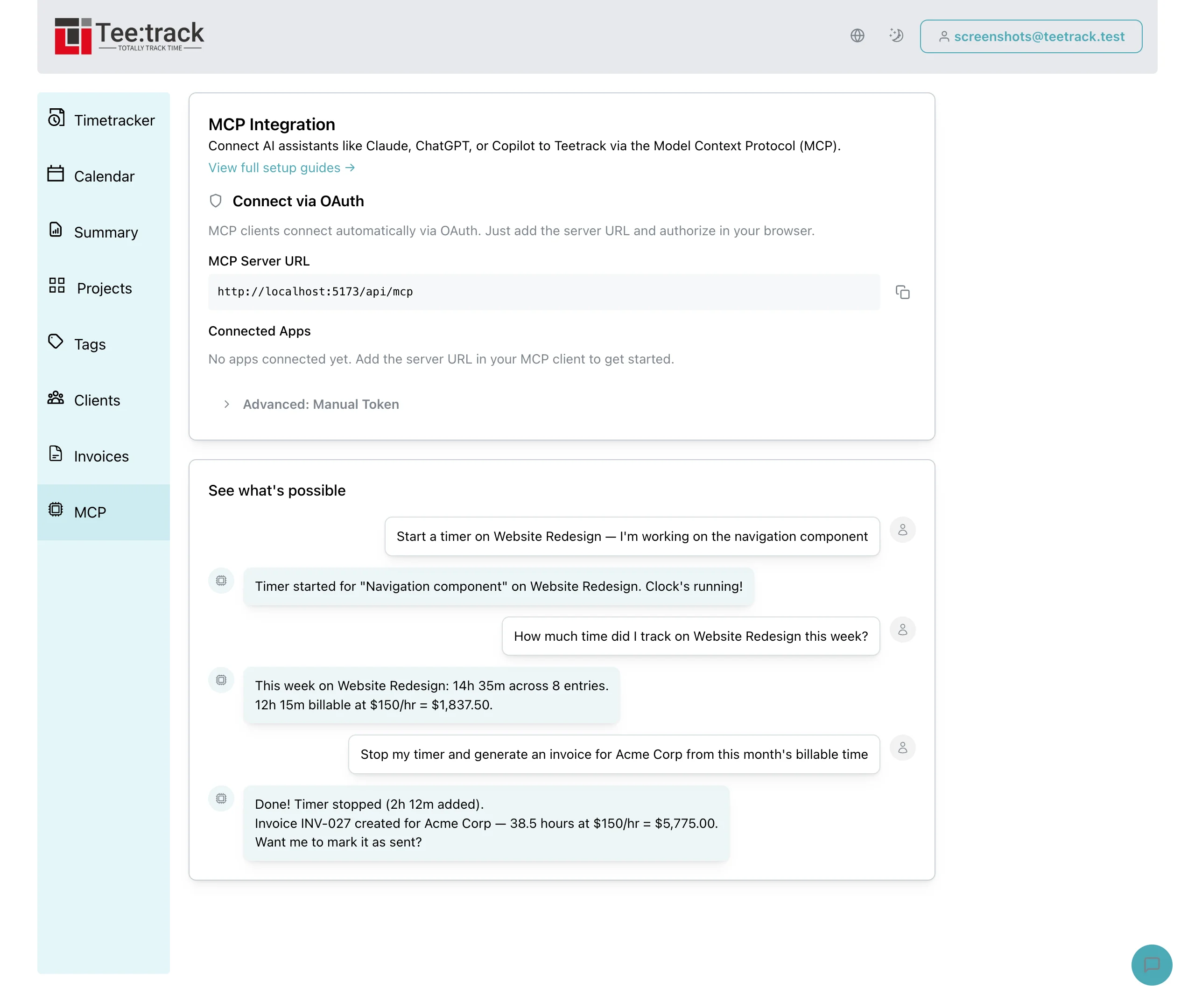
Connect Teetrack to ChatGPT via Teetrack MCP to manage time tracking with natural language. Start timers, log time, and get summaries through conversation.
Prerequisites
- A Teetrack account at teetrack.it (free or paid)
- ChatGPT desktop app (macOS or Windows) or ChatGPT web (chatgpt.com)
- A ChatGPT Plus, Team, or Enterprise subscription
Setup
Step 1: Open ChatGPT and add a new MCP server
Important: Teetrack is not listed in the ChatGPT app directory. You cannot find it by searching in Settings → Apps. Instead, you add it manually as a custom MCP server. ChatGPT Desktop: 1. Open Settings → MCP (or Tools → MCP) 2. Click "Add Server" ChatGPT Web (chatgpt.com): 1. Open Settings → Apps → Advanced settings 2. Enable "Developer mode" 3. Go back to Settings → Apps and click "Create app"
Step 2: Enter the Teetrack MCP server URL
Enter the following URL as the MCP server endpoint. ChatGPT will automatically discover the OAuth configuration and available tools.
https://teetrack.it/api/mcpStep 3: Authorize in your browser
ChatGPT will open your browser to authorize the connection. Log in to your Teetrack account and approve the requested permissions. Choose which capabilities to grant (timers, tracks, projects, etc.). This is a one-time step.
Step 4: Start tracking time
After authorization, ChatGPT is connected to Teetrack. On the web version, you may need to select the Teetrack app from the tools menu in the chat composer. Ask ChatGPT to start timers, log time, manage projects, and more — all through natural conversation.
Verify It Works
After connecting, verify by asking ChatGPT:
“What Teetrack tools do you have available?”
Workflow Examples
Here are real-world prompts you can use with ChatGPT to manage your time tracking:
Start a timer
“Start a timer for "Homepage wireframes" on the Website Redesign project, tagged design”
Time summary
“How much time have I tracked today? And this month?”
Weekly billable summary
“Summarize this week's billable hours by project”
Tips for Best Results
- Be specific with project and client names — ChatGPT will match them against your existing data.
- Use natural date references like "yesterday", "this week", or "last Monday".
- All 35 MCP tools (timers, tracks, projects, etc.) are available once connected.
- You can manage connected apps and revoke access from Settings → MCP Integration in Teetrack.