

Use Teetrack with Claude
Connect Teetrack to Claude via Teetrack MCP to manage time tracking with natural language. Start timers, log time, and get summaries in conversation.
 Track Time with Claude | Teetrack Setup, Timers & Reports4:55 · English with captions and a full transcriptWatch the tutorial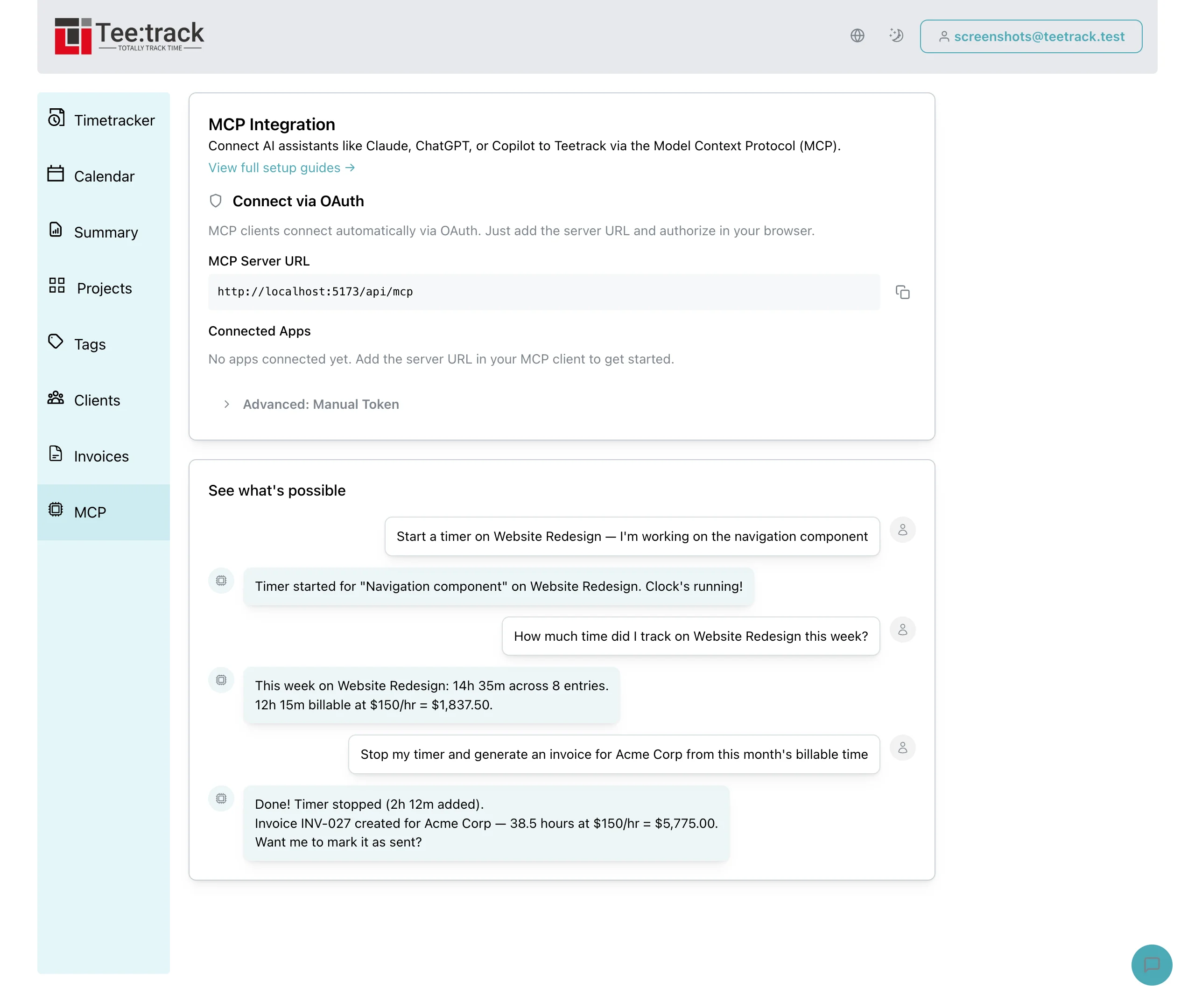
Prerequisites
- A Teetrack account at teetrack.it (free or paid)
- Claude.ai (web), Claude Desktop app, or Claude Code CLI
Setup
Option A: Claude.ai (Web)
Use the custom connector flow shown in the video. You will need access to custom connectors in your Claude account. 1. In Teetrack, open MCP in the sidebar and copy the server URL below. 2. In Claude, open Customize → Connectors → Yours → Add → Add custom connector. 3. Name the connector Teetrack, paste the server URL and choose Continue. 4. Keep Sign in now and Register automatically selected, then choose Add and Connect. 5. Review the permissions in Teetrack and choose Authorize. 6. Open a new Claude chat, ask it to list your Teetrack projects and approve the tool request.
https://teetrack.it/api/mcpOption B: Claude Desktop
Open your Claude Desktop config file and add the Teetrack MCP server. Restart Claude Desktop after saving. macOS: ~/Library/Application Support/Claude/claude_desktop_config.json Windows: %APPDATA%\Claude\claude_desktop_config.json
{
  "mcpServers": {
    "teetrack": {
      "url": "https://teetrack.it/api/mcp"
    }
  }
}Option C: Claude Code (CLI)
If you use Claude Code, add a .mcp.json file to your project root or home directory:
{
  "mcpServers": {
    "teetrack": {
      "type": "url",
      "url": "https://teetrack.it/api/mcp"
    }
  }
}Authorize in your browser
When Claude connects to Teetrack for the first time, it will open your browser for OAuth authorization. Log in to your Teetrack account and approve the requested permissions. This is a one-time step — Claude will remember the connection.
Alternative: Manual token setup
If OAuth does not work in your environment, you can use a personal API token instead. Generate one under Settings → MCP Integration in your Teetrack account and use this config:
{
  "mcpServers": {
    "teetrack": {
      "url": "https://teetrack.it/api/mcp",
      "headers": {
        "Authorization": "Bearer YOUR_TOKEN_HERE"
      }
    }
  }
}Verify It Works
After connecting, verify by asking Claude:
“What Teetrack tools do you have available?”
Workflow Examples
Here are real-world prompts you can use with Claude to manage your time tracking end-to-end:
Create a client
“Create a new client called Acme Corp with email billing@acme.com and an hourly rate of 150 USD”
Create a project
“Create a project called Website Redesign with color #3B82F6, enable billing at $150/hr, and assign it to Acme Corp”
Create tags
“Create tags for "design" (blue), "meeting" (orange), and "development" (green)”
Start a timer
“Start a timer for "Homepage wireframes" on the Website Redesign project, tagged design”
Stop a timer
“Stop my running timer”
Log past time
“Log 2 hours yesterday 10am-12pm for "Design review meeting" on Website Redesign, tagged meeting”
List tracks
“Show all my tracks from this week on Website Redesign”
Time summary
“How much time have I tracked today? And this month?”
Project summary
“Give me a summary of my top projects this month with billable amounts”
Budget check
“How's the budget looking on Website Redesign?”
Weekly billable summary
“Summarize this week's billable hours by project”
Tips for Best Results
- Be specific with project and client names — Claude will match them against your existing data.
- Use natural date references like "yesterday", "this week", or "last Monday" — Claude understands relative dates.
- Ask Claude to confirm before destructive actions like deleting tracks or projects.