

Use Teetrack with GitHub Copilot
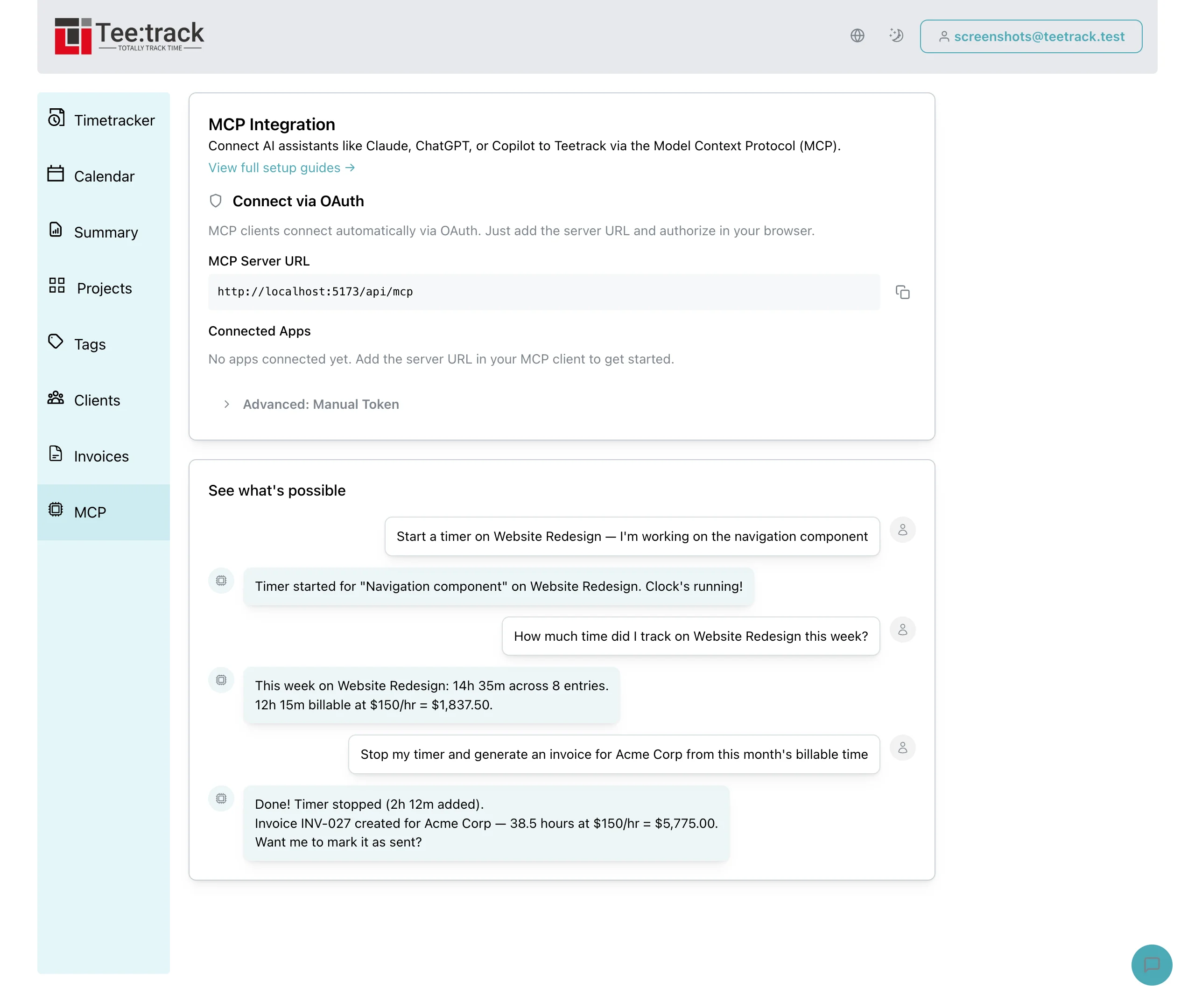
Use Teetrack MCP with GitHub Copilot in VS Code to manage time tracking while you code. Start timers, log time, and get summaries without leaving your editor.
Prerequisites
- A Teetrack account (free or paid)
- An API token generated from Settings → MCP Integration in Teetrack
- VS Code with the GitHub Copilot and GitHub Copilot Chat extensions installed
- A GitHub Copilot subscription (Individual, Business, or Enterprise)
Setup
Step 1: Generate your API token
Go to Settings → MCP Integration in Teetrack and click "Generate Token". Copy the token immediately — it will only be shown once.
Step 2: Open VS Code settings
Open VS Code and go to Settings (Cmd+, on macOS, Ctrl+, on Windows/Linux). Click the "Open Settings (JSON)" icon in the top-right corner to edit settings.json directly.
Step 3: Add MCP server configuration
Add the following to your settings.json. Replace YOUR_TOKEN_HERE with the API token you generated:
{
  "github.copilot.chat.mcp.servers": {
    "teetrack": {
      "type": "http",
      "url": "https://teetrack.it/api/mcp",
      "headers": {
        "Authorization": "Bearer YOUR_TOKEN_HERE"
      }
    }
  }
}Step 4: Reload and verify
Reload VS Code (Cmd+Shift+P → "Developer: Reload Window"). Open the Copilot Chat panel and Teetrack should appear as an available MCP tool provider.
Verify It Works
Open Copilot Chat and verify the connection by asking:
“What Teetrack tools do you have available?”
Workflow Examples
Here are real-world prompts you can use with Copilot to manage your time tracking without leaving VS Code:
Create a client
“Create a new client called Acme Corp with email billing@acme.com and an hourly rate of 150 USD”
Create a project
“Create a project called Website Redesign with color #3B82F6, enable billing at $150/hr, and assign it to Acme Corp”
Create tags
“Create tags for "design" (blue), "meeting" (orange), and "development" (green)”
Start a timer
“Start a timer for "Homepage wireframes" on the Website Redesign project, tagged design”
Stop a timer
“Stop my running timer”
Log past time
“Log 2 hours yesterday 10am-12pm for "Design review meeting" on Website Redesign, tagged meeting”
List tracks
“Show all my tracks from this week on Website Redesign”
Time summary
“How much time have I tracked today? And this month?”
Project summary
“Give me a summary of my top projects this month with billable amounts”
Budget check
“How's the budget looking on Website Redesign?”
Weekly billable summary
“Summarize this week's billable hours by project”
Tips for Best Results
- Be specific with project and client names — Copilot will match them against your existing data.
- Use natural date references like "yesterday", "this week", or "last Monday" — Copilot understands relative dates.
- Ask Copilot to confirm before destructive actions like deleting tracks or projects.
- Teetrack also supports OAuth authentication — if your MCP client supports it, you can connect without manual tokens.