

Advanced MCP Workflows: Automate Reports, Budgets, and Invoicing with AI (Part 4 of 4)

Advanced MCP Workflows: Automate Reports, Budgets, and Invoicing with AI (Part 4 of 4)

3/5/2026

Beyond basic commands: Thinking in workflows

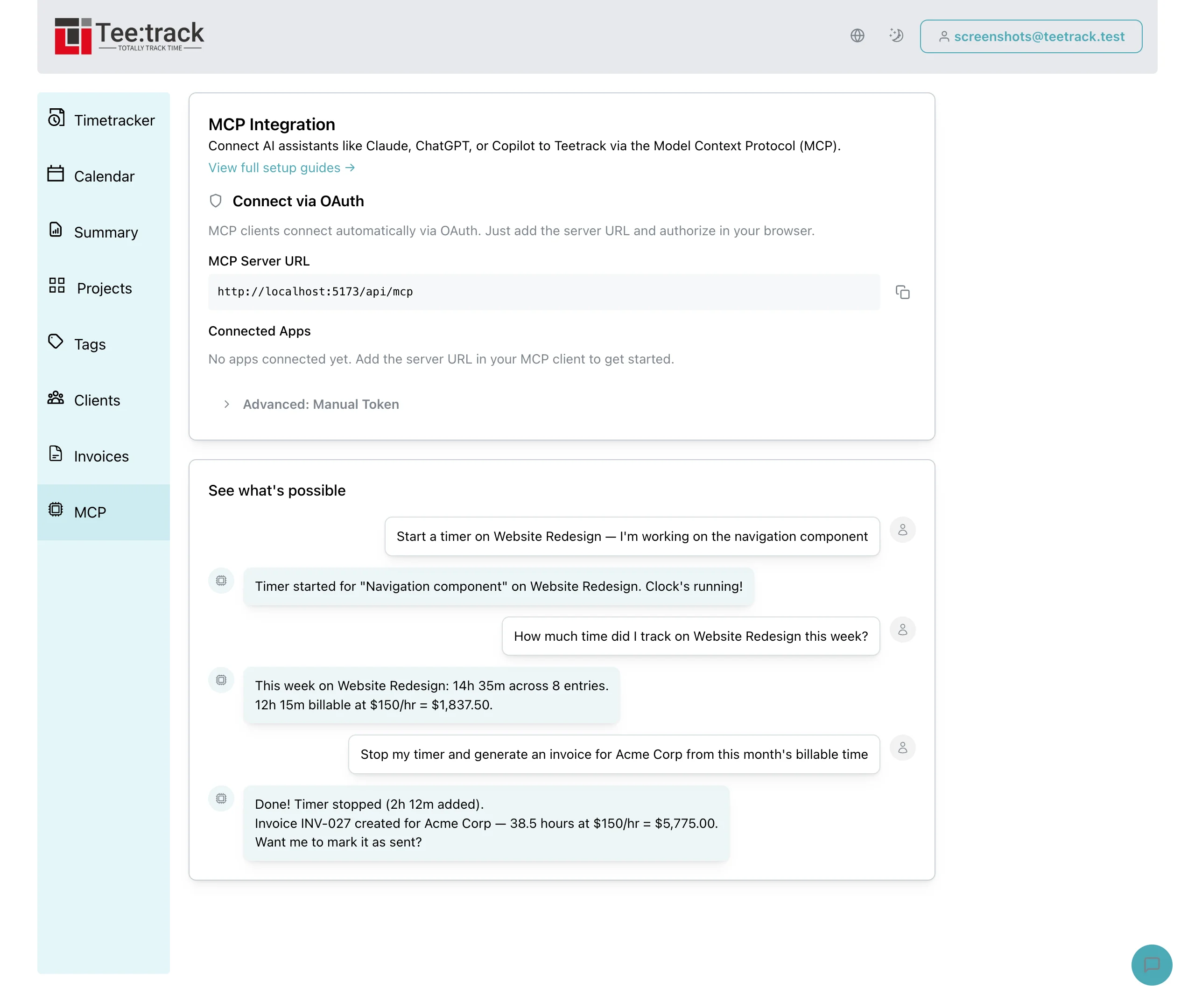
Parts 1 through 3 covered individual MCP tool calls — start a timer, create a project, generate an invoice. The real productivity gains come when you chain these tools into workflows that replace entire processes. Your AI assistant can execute a sequence of 10 or 20 tool calls in response to a single conversational prompt, turning a 30-minute manual process into a 30-second conversation.

This post covers four advanced workflow categories: reporting, budget monitoring, invoicing automation, and custom agent development.

Automated weekly time reports

Every Monday morning, you need to know what happened last week. Instead of opening Teetrack, navigating to the summary page, and manually computing totals, hand the entire report to your AI assistant:

"Generate my weekly time report for last week. Include: total hours tracked, hours per project, billable vs non-billable breakdown, and my top 3 projects by time spent. Compare it to the week before and flag any project where hours dropped by more than 20 percent."

Your AI assistant executes the following MCP tool calls behind the scenes:

  • list_tracks with date filters for last week and the week before
  • get_project_summary for both periods
  • get_time_summary for overall totals

It then computes the comparison, identifies the drop-off, and formats the report in whatever style you requested — markdown for Slack, bullet points for standup, or a table for email.

Making it recurring

Save this prompt as a template. Every Monday, paste it into your AI assistant and get a consistent, comprehensive report in seconds. If you use Claude Code, you can even add it to a script that runs the prompt automatically and writes the report to a file or sends it to a webhook.

Proactive budget monitoring

Budget overruns are a freelancer's worst nightmare. With the MCP server, your AI assistant can act as a proactive budget monitor:

"Check the budget status on all my projects. For any project that is over 75 percent of its budget, tell me the project name, hours remaining, and estimated days until the budget runs out based on my average daily hours this month."

The AI calls get_budget_status and get_project_summary, then performs the extrapolation. You get an early warning system that requires zero dashboard monitoring.

Setting budget alerts

Configure budget alert thresholds in Teetrack (available via the MCP update_project tool) and ask your AI to check them regularly:

"Set a budget alert threshold of 80 percent on all my active projects that have budgets."

Your AI iterates through your projects and updates each one with the threshold. From that point forward, your budget status queries will include alert flags for at-risk projects.

End-of-month invoicing pipeline

Invoicing is where AI-powered time tracking delivers the biggest time savings. Here is a complete end-of-month invoicing workflow in a single prompt:

"It is the end of February. For each of my projects that has billable tracks this month, generate an invoice from all billable tracks between February 1st and February 28th. Set each invoice's due date to March 15th. Give me a summary of all generated invoices with their totals."

Behind the scenes, your AI assistant:

  • Lists all projects with list_projects
  • For each project, queries billable tracks with list_tracks filtered by date range and billable status
  • Generates an invoice for each project using generate_invoice_from_tracks
  • Compiles a summary table of all generated invoices with project names, line item counts, and total amounts

What used to be an hour of clicking through the invoicing interface becomes a single conversation. You review the summary, spot-check a few invoices in the web app, and mark them as sent.

Handling multi-currency invoicing

If your clients pay in different currencies, the pipeline handles this automatically. Each track carries its own applied rate and currency from the project configuration. The generated invoices respect these per-track rates, so a EUR project and a USD project produce correctly denominated invoices without any manual adjustment.

Building custom AI agents

The MCP server is not limited to interactive chat. You can build autonomous AI agents that use Teetrack's tools programmatically:

Daily timesheet enforcer

Build an agent that runs at 6 PM every workday. It checks if you have logged at least 7 hours. If not, it sends you a reminder with the gap and your running timers. The agent uses get_time_summary and get_running_timer to gather the data and formats a notification.

Weekly client report generator

An agent that runs every Friday, queries each client's billable hours for the week, formats a professional summary, and writes it to a shared document or sends it via email. It uses list_clients, list_tracks, and get_project_summary to assemble the data.

Smart timer suggestions

An agent that monitors your calendar or commit history and suggests timers to start. "You just pushed to the frontend repo. Should I start a timer for the Website Redesign project?" This combines external context with Teetrack's MCP tools for proactive time tracking.

The MCP tool reference

For developers building custom integrations, here is the complete list of all 37 tools available through Teetrack's MCP server:

Timer tools

  • start_timer — Start a new timer with optional description, project, and tags
  • stop_timer — Stop a running timer by ID or the most recent one
  • get_running_timer — List all currently running timers

Track tools

  • list_tracks — List time entries with date, project, and status filters
  • get_track — Get a single time entry by ID
  • log_time — Create a completed time entry with start and end times
  • update_track — Modify an existing time entry
  • delete_track — Delete a time entry

Project tools

  • list_projects — List all projects with pagination
  • get_project — Get project details including billing and budget config
  • create_project — Create a project with name, color, rate, and budget
  • update_project — Update project attributes
  • delete_project — Delete a project

Tag tools

  • list_tags — List all tags with track counts
  • create_tag — Create a tag with name and color
  • update_tag — Update a tag
  • delete_tag — Delete a tag

Client tools

  • list_clients — List all clients
  • get_client — Get client details
  • create_client — Create a client with contact info and rates
  • update_client — Update client details
  • delete_client — Delete a client

Invoice tools

  • list_invoices — List invoices with client and status filters
  • get_invoice — Get invoice details with line items and totals
  • create_invoice — Create a blank invoice
  • generate_invoice_from_tracks — Generate an invoice from billable tracks
  • update_invoice — Update a draft invoice
  • delete_invoice — Delete an invoice
  • mark_invoice_sent — Lock an invoice as sent
  • export_invoice_csv — Export invoice data as CSV

Analytics tools

  • get_time_summary — Total tracked time by period
  • get_project_summary — Top projects by hours and billable amounts
  • get_budget_status — Budget tracking across all projects

Settings tools

  • get_user_settings — Display and rounding preferences
  • update_user_settings — Update user settings
  • get_subscription_usage — Subscription tier and usage info

Putting it all together: The AI-powered freelancer

Imagine a freelancer's week with Teetrack and an AI assistant fully integrated:

  • Monday: "Start my week. Show me all active projects with their budget status. Start a timer for the highest-priority project."
  • Tuesday–Thursday: Start and stop timers through quick voice or text commands. Log forgotten entries by describing what you did. "I forgot to track the client call yesterday from 2 to 3 PM — log it on the Consulting project."
  • Friday: "Generate my weekly report. How many billable hours did I track? Which projects need attention next week? Are any budgets at risk?"
  • End of month: "Generate invoices for all projects with billable time this month. Show me the totals before I mark them as sent."

Every interaction above is a real prompt you can use today. No clicks, no navigation, no context switching. Just conversation and results.

FAQ: Advanced MCP workflows

Can I automate MCP workflows on a schedule? Yes. Use any task scheduler (cron, GitHub Actions, a custom script) to send prompts to your AI assistant with Teetrack's MCP server connected. Claude Code and the OpenAI API both support non- interactive execution.

Are there rate limits on MCP tool calls? Teetrack applies the same rate limits as its web API — generous enough for interactive use and reasonable automation, with per-token fairness limits for MCP specifically. You will not hit limits during normal workflows.

Can I build a Slack bot that tracks time? Absolutely. Connect a Slack bot to an AI assistant with Teetrack's MCP server. Users in your Slack workspace can type "/track start API work" and the bot handles the rest through MCP tool calls.

What about data privacy in automated workflows? The same security model applies. Every MCP request is authenticated with your personal token. Your data stays within your Teetrack account. Automation does not weaken the security boundary.

Can multiple team members use the MCP server simultaneously? Yes. Each team member configures their own API token. All requests are scoped to the individual user's account with full multi-tenant isolation.

Related keywords

  • automated time tracking reports
  • AI invoice generation freelancer
  • MCP workflow automation
  • budget monitoring AI assistant
  • time tracking automation tools
  • custom AI agent time tracking
  • Slack bot time tracker
  • end-of-month invoicing automation
  • weekly time report generator AI
  • proactive budget alerts freelancer
  • JSON-RPC time tracking automation
  • AI-powered billing pipeline

The future of time tracking is conversational

Time tracking has always been a necessary chore — valuable data locked behind tedious data entry. The Teetrack MCP server changes that equation. Your AI assistant becomes your personal time tracking manager: starting timers when you describe what you are working on, logging forgotten entries from memory, monitoring your budgets, generating your invoices, and producing reports that would take an hour to compile manually.

Whether you use Claude, ChatGPT, Gemini, or a custom agent, Teetrack's MCP server gives you the same 37 tools, the same security, and the same flexibility. Start with a simple "start a timer" and build up to fully automated invoicing pipelines at your own pace.

Sign up at teetrack.it and connect your AI assistant today. The future of time tracking is not a dashboard — it is a conversation.

Teetrack.it Team

Teetrack.it Team

At Teetrack, we’re proud to have a talented and passionate team of developers who are dedicated to building the best time-tracking software out there. Our team is made up of innovative problem solvers who constantly push the boundaries to make Teetrack more powerful, intuitive, and user-friendly. With a focus on quality and continuous improvement, we work hard to deliver new features and enhancements that help you track your time more efficiently. We’re a small, tight-knit group that thrives on collaboration, creativity, and making a real impact on our users' productivity