

Introducing the Teetrack MCP Server: Control Your Time Tracking with AI (Part 1 of 4)

Introducing the Teetrack MCP Server: Control Your Time Tracking with AI (Part 1 of 4)

2/27/2026

What is MCP and why does it matter for time tracking?

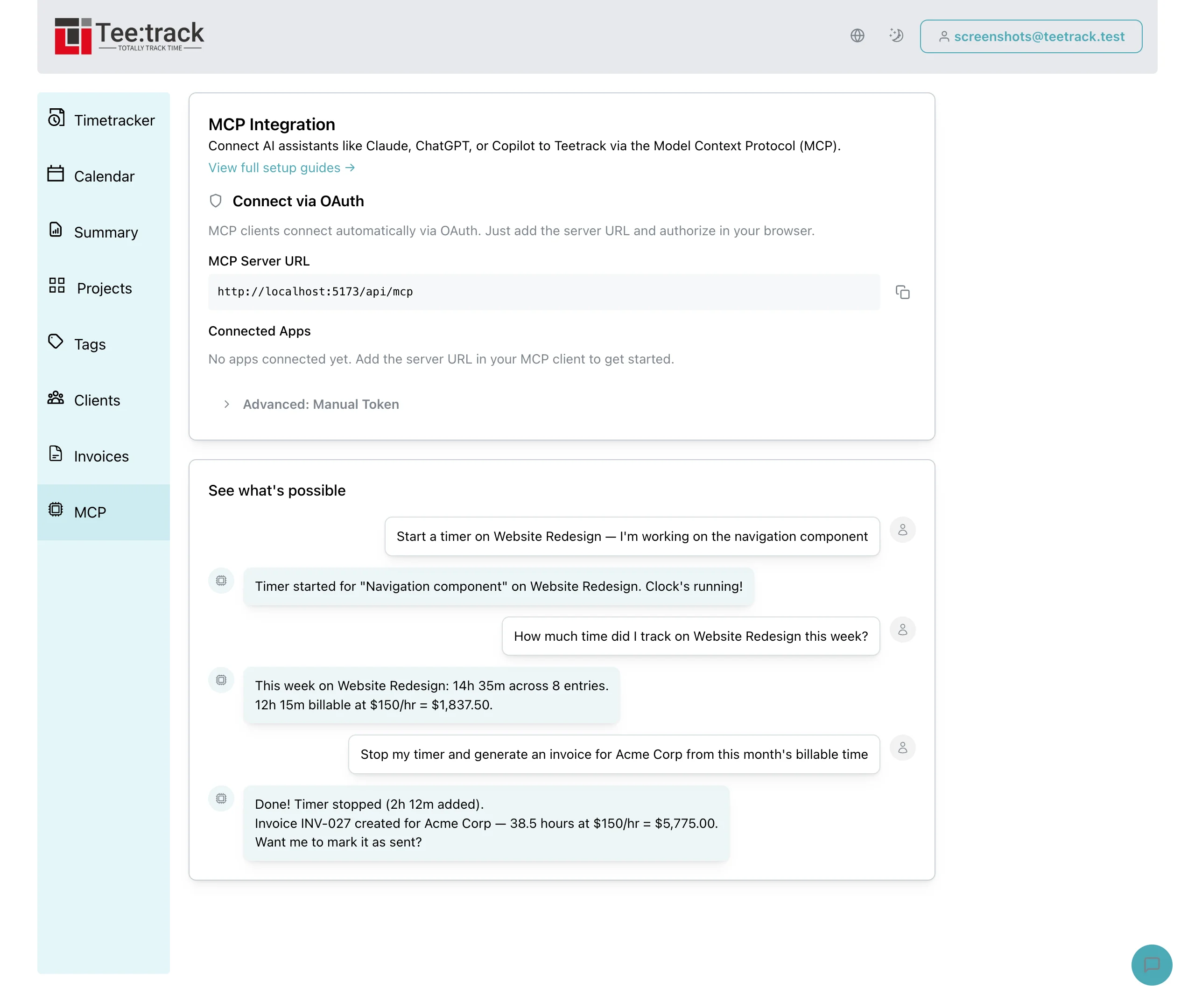
MCP stands for Model Context Protocol. It is an open standard that lets AI assistants interact with external tools and services in a structured, secure way. Instead of copying data between your time tracker and your AI chat window, MCP creates a direct bridge. Your AI assistant can read your time tracking data, start and stop timers, create projects, and even generate invoices — all without you leaving the conversation.

For freelancers and teams who already use AI assistants throughout their workday, this eliminates a major context switch. You no longer need to open a separate tab, navigate to your dashboard, and click through forms. You just tell your AI assistant what you need, and it handles the rest through Teetrack's MCP server.

What can the Teetrack MCP server do?

The Teetrack MCP server exposes 37 tools organized across every major feature of the platform. Here is what your AI assistant can do once connected:

  • Timer control: Start a timer with a description and project, stop a running timer, or check which timers are currently active. Say "start a timer for the website redesign project" and your AI handles it.
  • Time entry management: Log completed time entries with start and end times, list your recent tracks with filters, update descriptions or durations, and delete entries. Ask "log 2 hours on the API integration project from 9am to 11am today" and it is done.
  • Project management: Create projects with colors, billing rates, and budget configurations. List, update, or delete projects. Request "create a new project called Mobile App with a blue color and a rate of 120 euros per hour" and your AI creates it instantly.
  • Tag management: Create, update, list, and delete tags for organizing your time entries across categories.
  • Client management: Create client records with contact details, hourly rates, and currencies. Link clients to projects for automatic billing defaults.
  • Invoice generation: Create invoices, generate invoices from billable tracks, mark invoices as sent, and export them as CSV. Tell your AI "generate an invoice from all billable tracks on the Acme project this month" and it assembles everything.
  • Analytics and summaries: Get total tracked time broken down by day, month, and year. See your top projects by hours. Check budget status across all projects with budgets configured.
  • Settings and subscription: View and update your display preferences, rounding settings, and check your current subscription tier and usage.

How the MCP server works under the hood

The Teetrack MCP server implements the JSON-RPC 2.0 protocol, which is the communication standard that MCP uses. When your AI assistant wants to perform an action, it sends a structured JSON request to the server. The server authenticates your identity, dispatches the request to the appropriate handler, and returns the result.

There are two ways to connect:

  • Stdio mode: The server runs as a local process on your machine, reading requests from stdin and writing responses to stdout. This is the preferred method for desktop AI tools like Claude Code and is the fastest option with zero network latency.
  • HTTP mode: The server accepts JSON-RPC requests over HTTP at the /api/mcp endpoint. This works with cloud-based AI assistants and remote integrations.

Authentication and security

Security is a first-class concern. Every MCP request is authenticated before any data is accessed or modified. Your time tracking data is never exposed to unauthorized access.

  • API token authentication: Generate a personal API token in your Teetrack account settings and set it as the TEETRACK_MCP_TOKEN environment variable. This is the recommended approach for production use.
  • Email-based authentication: For local development, you can set TEETRACK_MCP_USER_EMAIL as a fallback. This resolves your user account by email address.

All data access is scoped to your account through strict multi-tenant isolation. Your AI assistant can only see and modify your own time entries, projects, clients, and invoices. It cannot access any other user's data, regardless of the request it sends.

Which AI assistants are supported?

The MCP protocol is supported by a growing ecosystem of AI tools. Teetrack's MCP server works with any client that speaks the MCP standard, including:

  • Claude (Anthropic) — Full MCP support via Claude Code (CLI), Claude Desktop (local and remote connectors), and the Claude API. This is the most mature integration and what we cover in depth in Part 2 of this series.
  • ChatGPT (OpenAI) — MCP support through the Apps interface. Connect Teetrack as a remote MCP server via URL. Available on Pro, Team, Enterprise, and Edu plans. Covered in Part 3.
  • Gemini (Google) — MCP support through the Gemini CLI with local stdio and remote HTTP transports. Also covered in Part 3.
  • Other MCP clients: Any tool or agent framework that implements the MCP standard can connect to Teetrack. This includes the OpenAI Agents SDK, custom scripts, automation pipelines, and third-party AI platforms.

Quick start: Your first MCP connection

Getting started takes less than two minutes. The exact setup depends on which AI assistant you use, but the core idea is the same: point your assistant at Teetrack's MCP endpoint and authenticate with your API token.

1. Make sure you have a Teetrack account at teetrack.it and generate a personal API token in your account settings.

Claude Code (recommended for developers)

Add Teetrack with a single CLI command:

claude mcp add teetrack \
  --scope user \
  -e TEETRACK_MCP_TOKEN=your-api-token \
  -- mix mcp.server

Claude Desktop

For remote connections, go to Settings > Connectors > Add custom connector and enter your Teetrack MCP server URL. For local servers, add the configuration to your claude_desktop_config.json file.

ChatGPT

Enable Developer Mode in Settings, then go to Settings > Apps > Add connector. Enter your Teetrack MCP server URL (https://teetrack.it/api/mcp). ChatGPT connects to remote MCP servers over HTTP.

Gemini CLI

Add Teetrack to your ~/.gemini/settings.json:

{
  "mcpServers": {
    "teetrack": {
      "command": "mix",
      "args": ["mcp.server"],
      "env": {
        "TEETRACK_MCP_TOKEN": "your-api-token"
      }
    }
  }
}

2. Try a simple command: "What timers are currently running?" or "Start a timer for writing documentation."

What is coming in this series

This is Part 1 of a four-part series on AI-powered time tracking with Teetrack:

  • Part 1 (this post): Introduction to the Teetrack MCP server — what it is, what it can do, and how to get started.
  • Part 2: Deep dive into Claude integration — using Claude Code and Claude Desktop with Teetrack for hands-free time tracking, project management, and invoice generation.
  • Part 3: Using Teetrack with ChatGPT and Gemini — setup guides and workflow examples for OpenAI and Google's AI assistants.
  • Part 4: Advanced workflows — automating weekly reports, budget monitoring, end-of-month invoicing, and building custom AI agents on top of Teetrack's MCP server.

FAQ: Teetrack MCP server

Do I need a paid plan to use the MCP server? The MCP server is available on all plans. Some features like invoicing and budget tracking require the corresponding subscription tier, just as they do in the web app.

Is my data sent to third parties? No. The MCP server runs locally on your machine or communicates directly with your Teetrack account. Your AI assistant sends requests to the MCP server, which talks to Teetrack's API. Your time tracking data is never shared with the AI provider's training pipeline.

Can I use the MCP server without an AI assistant? Yes. The MCP server speaks standard JSON-RPC, so you can integrate it into any script, automation tool, or custom application. It is a general-purpose API bridge, not limited to AI use cases.

What happens if I start a timer via MCP and forget to stop it? The timer appears in your Teetrack dashboard just like any other timer. You can stop it from the web app, from your AI assistant, or from any other MCP client. Everything stays in sync.

Related keywords

  • MCP server time tracking
  • AI-powered time tracker
  • Model Context Protocol integration
  • Claude time tracking
  • ChatGPT time management
  • Gemini project tracking
  • automated time logging AI
  • voice-controlled time tracker
  • natural language time tracking
  • AI assistant invoice generation
  • JSON-RPC time tracking API
  • freelancer AI productivity tools

Start tracking time with your AI assistant today

The Teetrack MCP server bridges the gap between your AI assistant and your time tracking workflow. No more switching tabs, no more manual data entry, no more forgetting to start a timer. Just tell your AI what you are working on and let Teetrack handle the rest. Sign up at teetrack.it and follow the quick start guide above to connect your first AI assistant. In Part 2, we will show you exactly how to set up Claude for the ultimate AI-powered time tracking experience.

Teetrack.it Team

Teetrack.it Team

At Teetrack, we’re proud to have a talented and passionate team of developers who are dedicated to building the best time-tracking software out there. Our team is made up of innovative problem solvers who constantly push the boundaries to make Teetrack more powerful, intuitive, and user-friendly. With a focus on quality and continuous improvement, we work hard to deliver new features and enhancements that help you track your time more efficiently. We’re a small, tight-knit group that thrives on collaboration, creativity, and making a real impact on our users' productivity