

Using Teetrack with Claude: The Complete Guide to AI Time Tracking (Part 2 of 4)

Using Teetrack with Claude: The Complete Guide to AI Time Tracking (Part 2 of 4)

3/1/2026

Why Claude is the ideal partner for Teetrack

Claude was built with tool use and the Model Context Protocol at its core. When you connect Teetrack's MCP server to Claude, the AI assistant gains full awareness of all 37 tools available — from starting timers to generating invoices. Claude understands the relationships between your projects, tracks, clients, and billing configuration. It does not just execute commands blindly; it can reason about your time data and make intelligent suggestions.

Whether you use Claude Code in your terminal, Claude Desktop on your machine, or the Claude API in a custom integration, the MCP connection works the same way. You configure it once, and every conversation with Claude has access to your complete Teetrack workflow.

Setting up Claude Code with Teetrack

Claude Code is Anthropic's command-line AI assistant for developers. It is the fastest way to use Teetrack with Claude because it supports local MCP servers natively with zero configuration overhead.

Step 1: Run a single CLI command to register Teetrack as an MCP server:

claude mcp add teetrack \
  --scope user \
  -e TEETRACK_MCP_TOKEN=your-api-token \
  -- mix mcp.server

The --scope user flag makes Teetrack available across all your projects. You can also use --scope local for a single project or --scope project to share the configuration with your team via source control. Verify the connection with claude mcp list.

Step 2: Launch Claude Code. It connects to Teetrack's MCP server automatically. You will see the Teetrack tools listed when Claude initializes.

Step 3: Start talking. Claude now has full access to your time tracking data.

Setting up Claude Desktop with Teetrack

Claude Desktop provides the same MCP capabilities in a graphical interface. There are two ways to connect:

Remote connection (recommended): Go to Settings > Connectors > Add custom connector and enter your Teetrack MCP server URL. This is the simplest setup — no local installation required. Available on Pro, Max, Team, and Enterprise plans.

Local connection: Add Teetrack to your claude_desktop_config.json configuration file (Settings > Developer > Edit Config). This runs the MCP server locally on your machine for the fastest possible response times:

{
  "mcpServers": {
    "teetrack": {
      "command": "mix",
      "args": ["mcp.server"],
      "env": {
        "TEETRACK_MCP_TOKEN": "your-api-token"
      }
    }
  }
}

Claude Desktop is ideal for non-developers who want AI-powered time tracking without touching a terminal. After configuration, restart Claude Desktop and look for the hammer icon in the input area — clicking it shows all available Teetrack tools.

Real-world workflow: A day with Claude and Teetrack

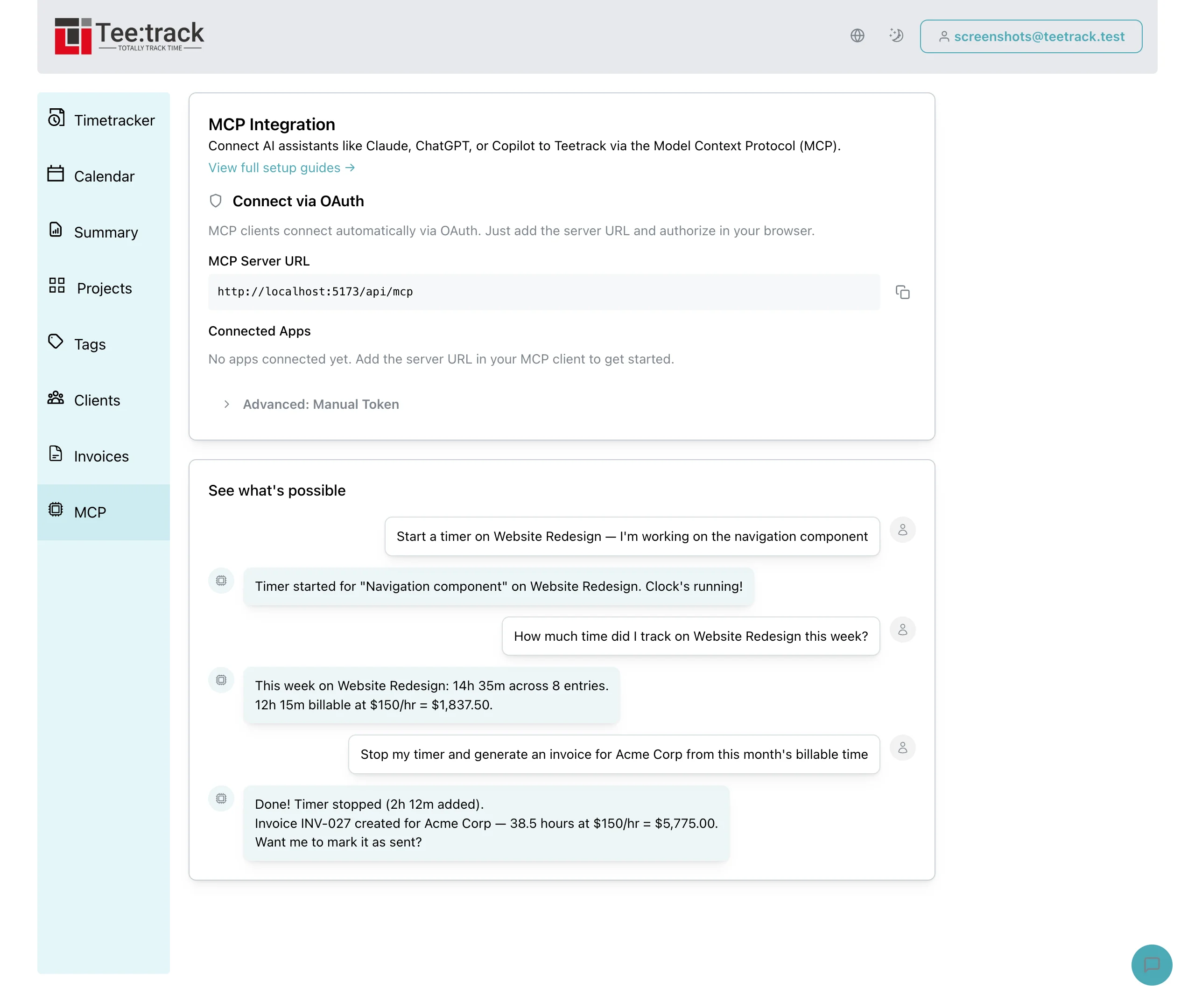
Here is what a typical workday looks like when you combine Claude with Teetrack. Every interaction below is a real command you can give Claude once the MCP server is connected.

Morning standup — 9:00 AM

"Good morning. What did I work on yesterday? Show me all time entries from yesterday with their projects and durations."

Claude queries your tracks from the previous day and presents a clean summary — project names, descriptions, durations, and totals. You now have your standup update without opening the dashboard.

Start working — 9:15 AM

"Start a timer for the API refactoring task on the Backend Overhaul project."

Claude starts a timer with the description "API refactoring" linked to the correct project. It confirms the timer is running and shows you the project's current budget status if one is configured.

Context switch — 11:30 AM

"Stop my current timer and start a new one for the team sync meeting."

Claude stops the running timer (logging 2 hours 15 minutes) and immediately starts a new timer for the meeting. Two operations, one sentence, zero clicks.

Afternoon check-in — 3:00 PM

"How many hours have I tracked today? Am I on pace for my weekly target of 35 hours?"

Claude fetches your time summary, calculates today's total, compares it against your weekly target, and tells you whether you are ahead or behind schedule. It can even break this down by project if you ask.

End of day — 6:00 PM

"Stop all timers. Show me a summary of everything I tracked today."

Claude stops any running timers and gives you a complete daily report — total hours, per-project breakdown, billable vs non-billable time, and any notes you added to entries throughout the day.

Project management through conversation

Claude does not just handle timers. You can manage your entire project setup through natural language:

  • "Create a new project called Brand Refresh with a purple color, an hourly rate of 95 dollars, and a budget of 200 hours."
  • "What is the budget status on all my active projects? Which ones are over 80 percent?"
  • "Update the Mobile App project hourly rate from 110 to 125 euros."
  • "List all projects I have not tracked time against in the last 30 days."

Each of these prompts translates into one or more MCP tool calls that Claude executes automatically. The results come back in natural language, formatted for readability.

Invoice generation with Claude

One of the most powerful integrations is automated invoice generation. At the end of a billing period, you can say:

"Generate an invoice for all billable tracks on the Acme Corp project from February 1st to February 28th. Set the due date to March 15th."

Claude will:

  • Query all billable tracks for the specified project and date range
  • Calculate totals based on each track's applied rate
  • Create an invoice with properly computed line items
  • Set the due date and associate the correct client
  • Return the invoice details for your review

You can then review the invoice in Teetrack's web interface, make any final adjustments, and mark it as sent. What used to be a 20-minute end-of-month ritual becomes a 30-second conversation.

Tips for effective Claude + Teetrack usage

  • Be specific with dates: "Last week" is ambiguous. Say "from Monday February 17th to Friday February 21st" for precise results.
  • Use project names: Claude matches projects by name, so use the exact project name from your Teetrack account for reliable results.
  • Chain requests: Claude can handle multi-step workflows in a single prompt. "Stop my timer, log 30 minutes for lunch, and start a new timer for the afternoon sprint" executes three operations sequentially.
  • Ask for analysis: Claude can compute averages, compare periods, and identify trends. "Compare my tracked hours this week to last week by project" gives you insights no dashboard toggle can match.

FAQ: Claude + Teetrack

Can Claude edit past time entries? Yes. You can say "update yesterday's API refactoring entry to end at 5:30 PM instead of 5:00 PM" and Claude will modify the track's end time.

Does Claude remember my projects between sessions? Claude queries your projects fresh each time through the MCP server. It always works with your current, live data — never stale caches.

Can I use Claude to track time while coding? Absolutely. This is Claude Code's sweet spot. You can ask Claude to start a timer, write code, and stop the timer — all in the same terminal session. Your coding and time tracking happen in one place.

What if Claude makes a mistake? Every action Claude takes through MCP is reversible. You can delete a mislabeled time entry, update an incorrect duration, or void a draft invoice. Claude will also confirm destructive actions before executing them.

Related keywords

  • Claude Code time tracking
  • Claude MCP integration
  • Anthropic Claude time management
  • AI pair programming time tracker
  • Claude Desktop project management
  • hands-free time tracking AI
  • Claude invoice automation
  • natural language time logging Claude
  • developer time tracking AI assistant
  • Claude Code productivity tools
  • MCP tool use time tracking
  • best AI for freelance time tracking

Next in the series

In Part 3, we cover how to use Teetrack with ChatGPT and Gemini — including setup guides, workflow differences, and which AI assistant works best for which use case. If you have not read Part 1 yet, head to our blog for the full introduction to Teetrack's MCP server.

Teetrack.it Team

Teetrack.it Team

At Teetrack, we’re proud to have a talented and passionate team of developers who are dedicated to building the best time-tracking software out there. Our team is made up of innovative problem solvers who constantly push the boundaries to make Teetrack more powerful, intuitive, and user-friendly. With a focus on quality and continuous improvement, we work hard to deliver new features and enhancements that help you track your time more efficiently. We’re a small, tight-knit group that thrives on collaboration, creativity, and making a real impact on our users' productivity