

Match calendar drafts to projects
By Tristan Doehl · · Updated
An imported meeting is easier to review when it already belongs to the right project. Teetrack can use words in the event title and patterns in your confirmed history to propose an assignment, with a configured default available when those methods do not find a match.
Use specific words from the event title
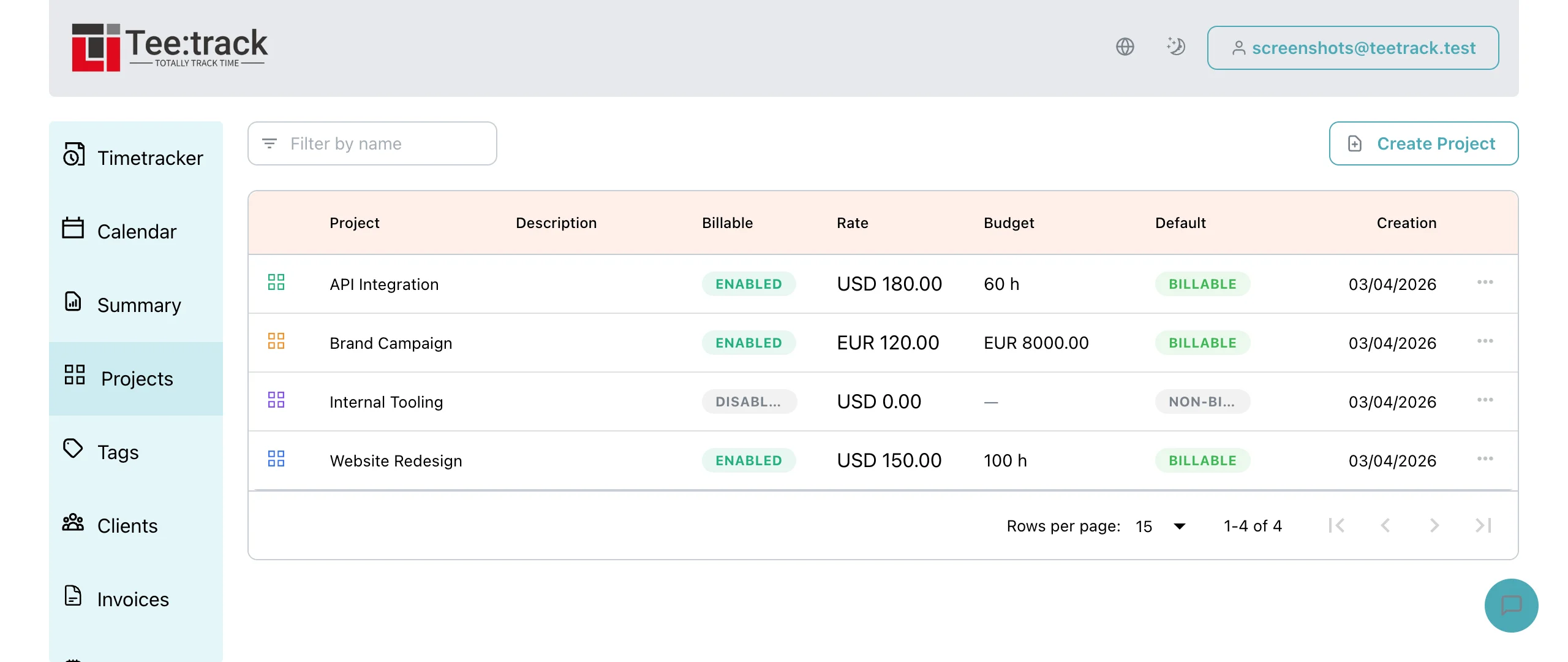
Keyword matching is a Pro feature; automatic import on Business skips this step. On Pro, add Calendar Keywords in the project form. A project can have up to twenty keywords of up to one hundred characters each. Teetrack compares them with the event title using a case-insensitive substring match.
For an illustrative project called “Acme migration,” the keyword “acme migration” matches “Acme Migration weekly review.” The matcher reads the title, so a client name that appears only in the event description or attendee list is not a keyword match.
Resolve broad and specific matches
When keywords from different projects match, the longest matching keyword wins. “Acme migration” is fourteen characters including its space, so it takes precedence over the four-character keyword “acme.” That lets a specific engagement win over a general client label.
If two matching keywords have the same length, the first encountered in the matching list wins. Avoid using that tie-break to distinguish projects, since it is harder to inspect than a specific keyword. A broad word such as “review” can match many unrelated meetings; an engagement name gives the matcher a clearer choice.
Understand the fallback order
If keyword matching finds no project, or is skipped on Business, Teetrack can suggest a project from confirmed entries in the last 90 days. The event title must match the entry description exactly after trimming whitespace and ignoring case. Private and confidential events are skipped for this history-based suggestion. If no history match exists, Teetrack uses the connection’s “Default project for imports,” if you have set one in the auto-import settings.
A recurring meeting with the same title can therefore receive the project used for a recent confirmed entry. Changing “Acme weekly review” to “Acme weekly review: launch” breaks that exact match unless another matching confirmed entry exists. Check the suggested project when titles change.
Check assignments before confirming work
Suppose an internal meeting contains a client’s name because the team is discussing a proposal. A keyword may select the client project, even though the session belongs to non-billable sales work. Correct the assignment and billing treatment before confirming the draft.
Improve matching from actual corrections
Review the mismatches you encounter and adjust the smallest relevant keyword set. A specific name that solves a recurring mistake is more useful than a long list of broad terms. The auto-import workflow explains how those assignments fit into draft review and confirmation.