

How to Connect Outlook Calendar to Teetrack — Step-by-Step Guide
Connect Microsoft Outlook Calendar to Teetrack. Works with Microsoft 365, Exchange, and Outlook.com.
Watch: Outlook setup, sync, billable hours, and privacy
Part 1 · English video · 2:48. Follow the setup from Microsoft consent to the first sync. Every plan can connect a calendar and view events; automatic drafts require Business.
Part 2 · English video · 3:19. Understand the sync and draft windows, status badges, and how Outlook changes affect unconfirmed drafts. Confirmed entries stay unchanged.
Part 3 · English video · 2:42. Enable auto-import, match projects using keywords, confirmed history, or a default project, and review the drafts. Only confirmed entries count toward hours, budgets, and exports. Auto-import requires Business; calendar keywords require Pro.
Part 4 · English video · 2:41. Understand read-only permissions, private events, and pausing or disconnecting. Private and confidential titles are hidden only in Daily Review, not on the calendar page; personal events remain visible. Confirmed entries stay when you disconnect.
Prerequisites
- A Teetrack account. Every plan can connect a calendar and see its events; automatic import of events as draft entries starts on Business.
- A Microsoft account with an Outlook calendar — Microsoft 365 or Exchange Online (work or school), or a personal outlook.com, hotmail.com, or live.com account.
- Permission to grant app consent. On a managed Microsoft 365 tenant, an administrator may have to approve Teetrack before the consent screen will complete.
Steps
Step 1: Open the Outlook settings page
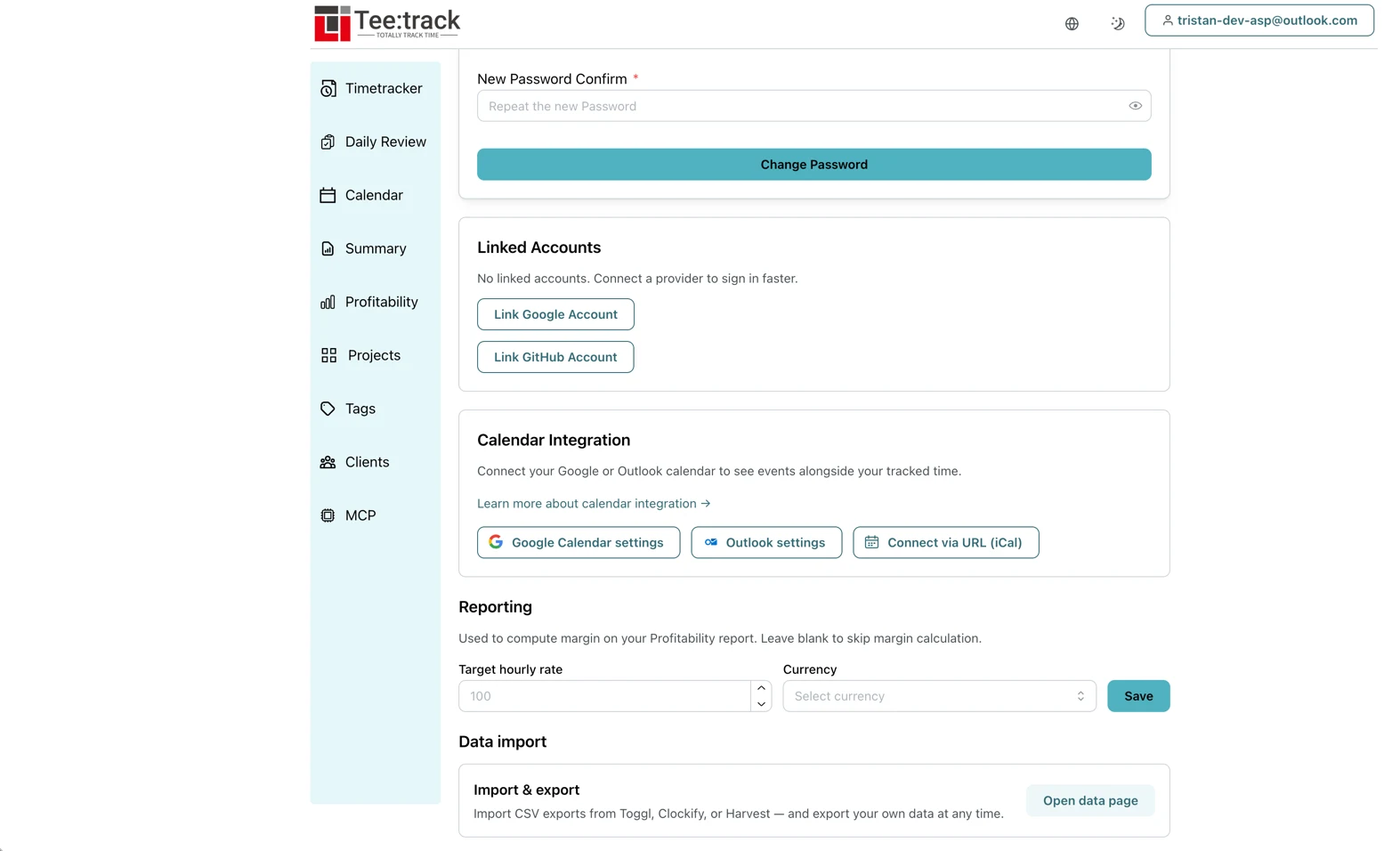
In Teetrack, open Settings from the user menu in the top right and find the "Calendar Integration" card. Click "Outlook settings" to open the dedicated Outlook page at /settings/calendars/outlook. If you have just signed up and have no calendar connected yet, Teetrack shows you the same options on its setup page at /calendar-setup, with a "Connect Outlook" button you can use directly.
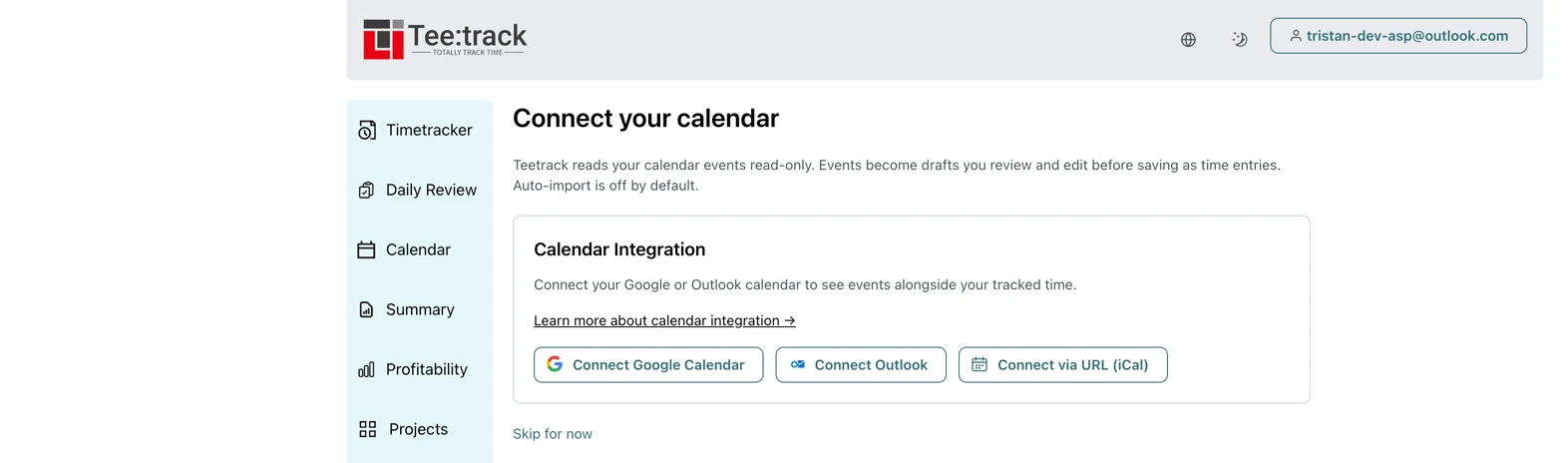

Step 2: Click "Connect Outlook" and sign in with Microsoft
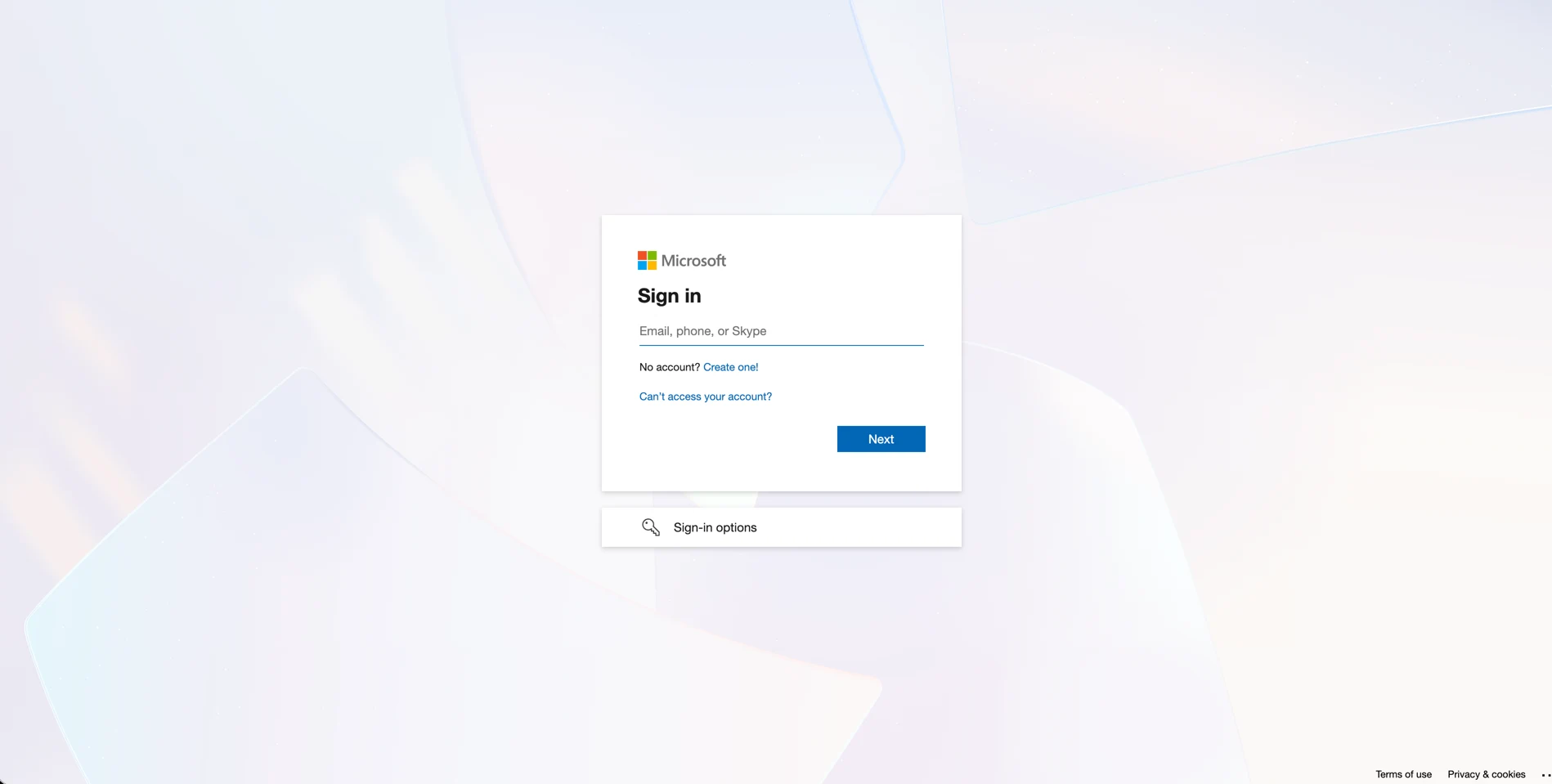
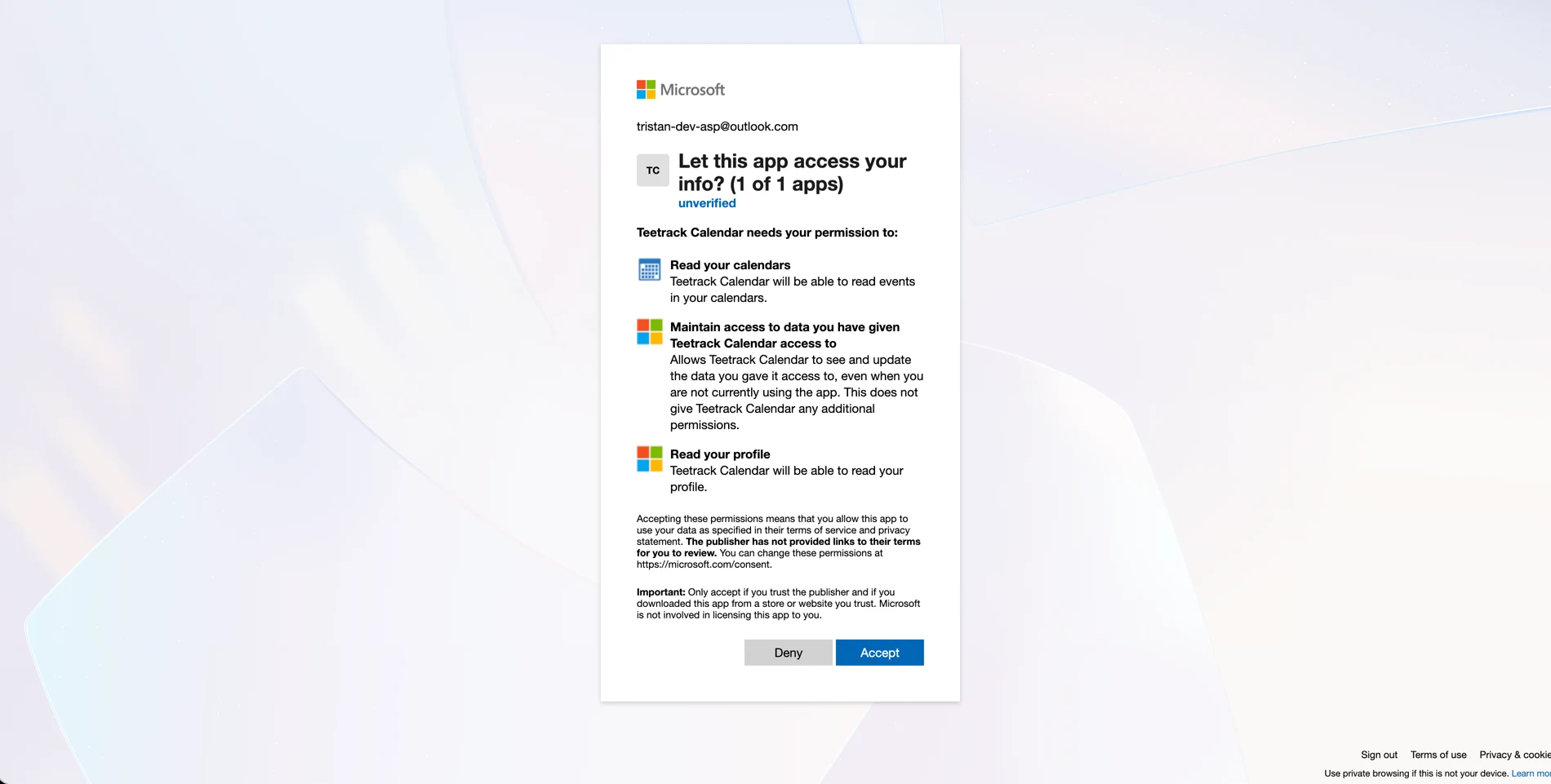
Teetrack redirects you to the Microsoft sign-in page. Sign in and review the permissions Teetrack asks for: • Calendars.Read — read the events in your calendars. Read-only: no write permission is requested, so Teetrack cannot change anything on the Microsoft side. • User.Read — read your basic profile, so the connection can be labelled with your email address. • offline_access — stay connected, so Teetrack can keep syncing without asking you to sign in again every hour. Accept, and Microsoft sends you back to Teetrack.
Step 3: Watch the first sync finish
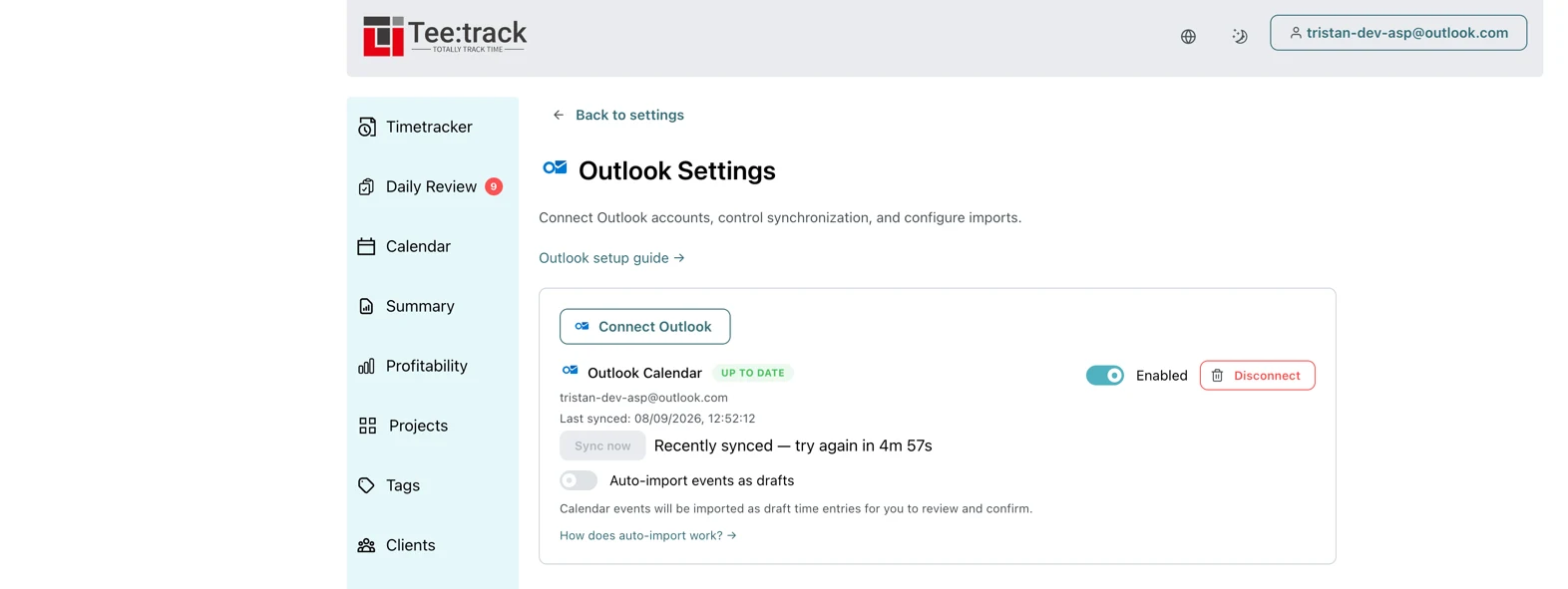
Where you land depends on whether this is your first calendar. The very first calendar you connect to Teetrack drops you straight into Daily Review, because that is where the events you just imported are waiting. Any calendar after that returns you to the Outlook settings page. On the settings page the connection card is covered by a "Syncing now" overlay while the first sync runs. It resolves into "Sync successful", the number of events imported, the account address, and the completion time. The first sync reaches 30 days into the past and 14 days into the future.
Step 4: Read the connection card
Once the overlay clears, the connection card is the control panel for this calendar: • A status badge — "Up to date", "Never synced", "Sync overdue", "Rate limited by provider", "Reconnect needed", or "Sync error". • The connected account address, and "Last synced" in your local time. • "Sync now" — an on-demand sync, limited to once every five minutes per connection. While the cooldown runs, the button shows the remaining time. • An "Enabled" switch — turn it off to pause a calendar without disconnecting it. Its events disappear from the calendar view while it is off. • "Disconnect" — removes the connection. See the tips below for exactly what that deletes.
Step 5: Turn on auto-import (Business and above)
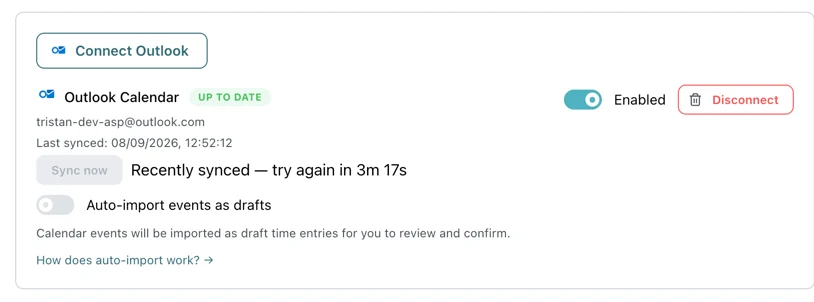
The "Auto-import events as drafts" switch sits below the connection card. Turn it on and every sync turns new calendar events into draft time entries for you. On the Free plan the switch is disabled and reads "Upgrade to Business to enable auto-import" — you can still connect Outlook, see your events, and turn any of them into an entry by hand (step 8). Auto-import deliberately uses a narrower window than the sync itself: it only creates drafts for events from the last 7 days and the next 1 day. The rest of the 30-day history is there to look at, not to bulk-import behind your back.
Step 6: Choose a default project for imports
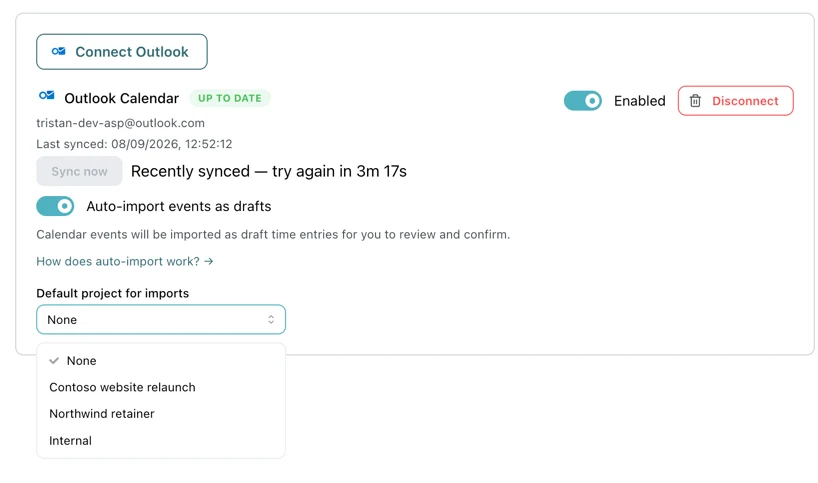
Once auto-import is on, a "Default project for imports" dropdown appears. Anything Teetrack cannot match by keyword or by your own history is assigned to this project, so no draft arrives completely unlabelled. Leave it on "None" if you would rather assign projects yourself during review.
Step 7: Add calendar keywords to your projects (Pro)
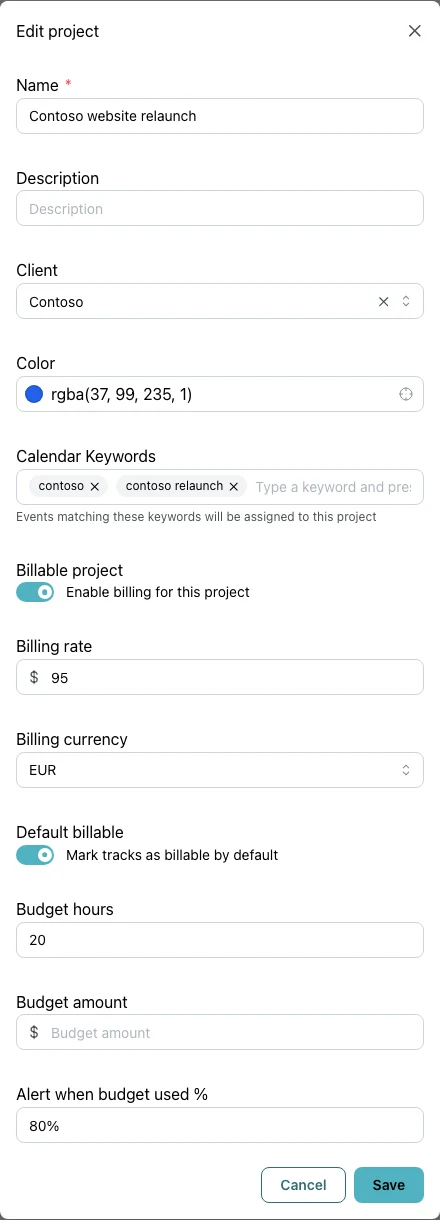
On the Pro plan, each project has a "Calendar Keywords" field in its edit form (Projects → open a project). Type a keyword and press Enter; up to 20 keywords per project, 100 characters each. Matching is a case-insensitive substring test against the event title, so a keyword of "acme" matches "Acme sprint planning" and "Call w/ ACME". If several projects match, the one with the longest matching keyword wins — which is how a specific keyword like "acme migration" beats a general one like "acme".
Step 8: Review the imported events
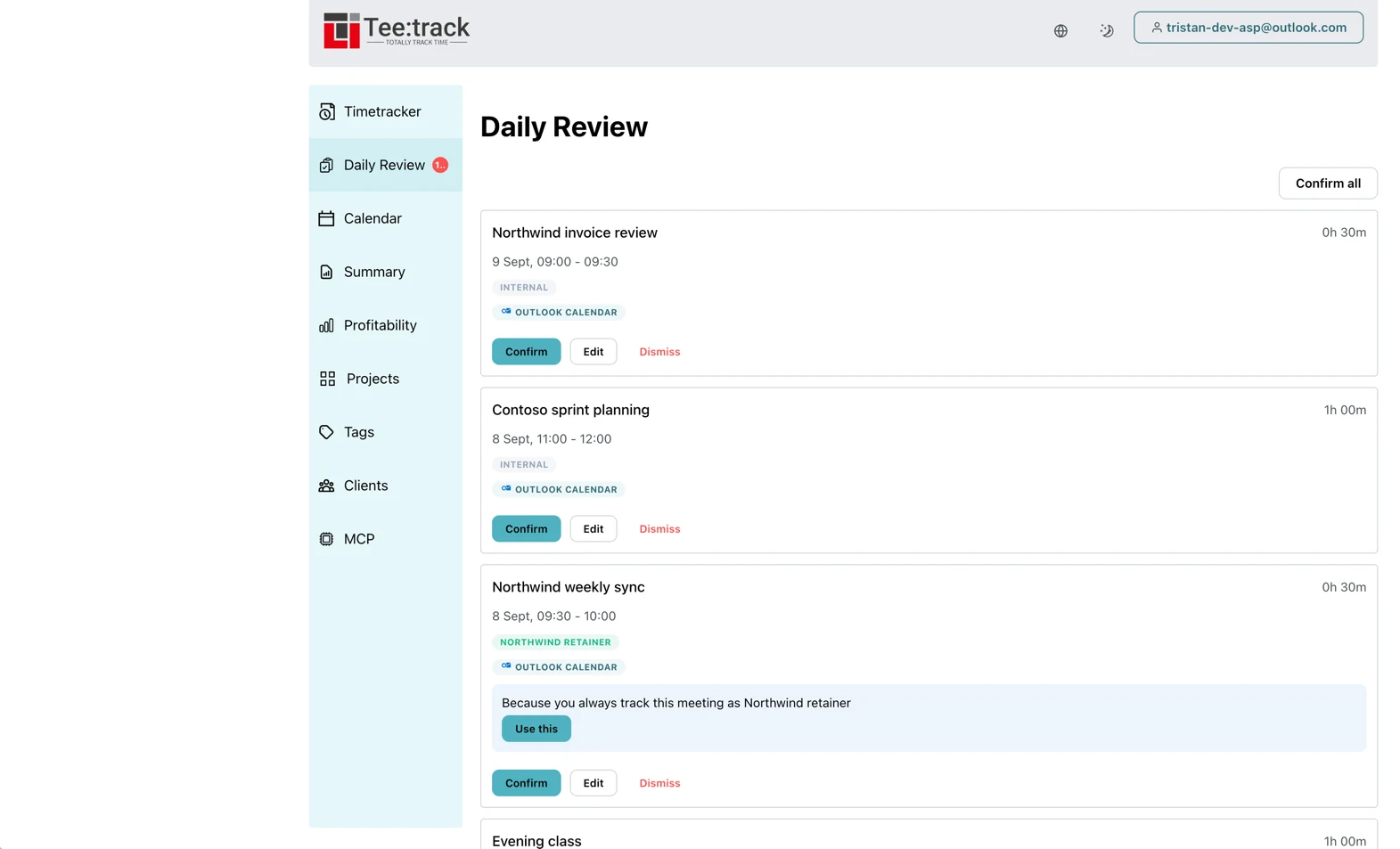
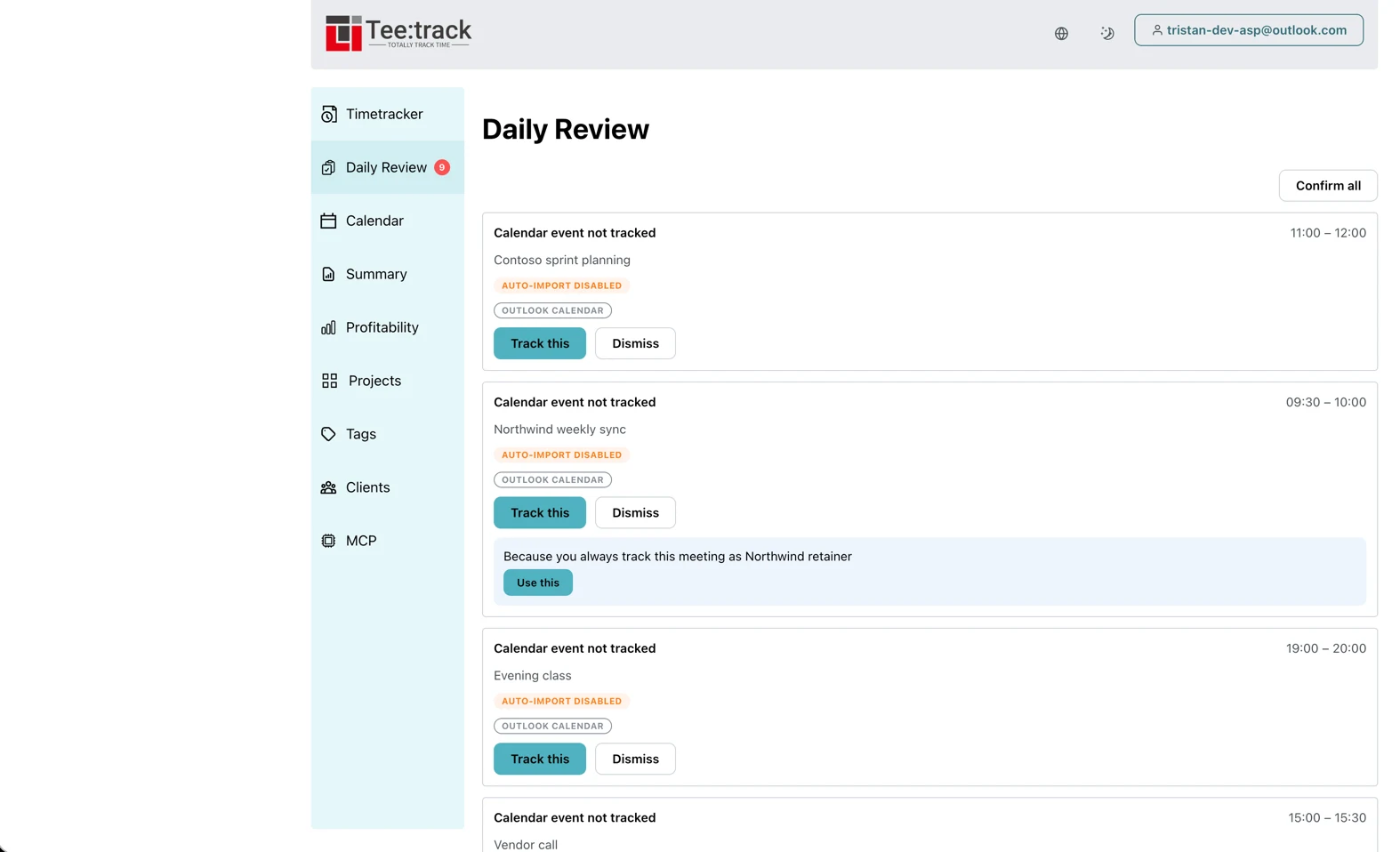
Open Daily Review (/daily-review) — this is the main review surface, and it covers the last 7 days. With auto-import on, each imported event is a draft card with Confirm, Edit, and Dismiss, plus "Confirm all" for a whole day at once. Teetrack will also suggest a project when it recognises the meeting: "Because you always track this meeting as Acme" comes from your own confirmed history over the last 90 days. With auto-import off — the Free plan, or a connection you deliberately left manual — the same events appear as "Calendar event not tracked" cards with a "Track this" button and a note explaining why they were not imported ("Auto-import disabled"). One click makes an entry out of one event. These cards only cover events that have already finished, so a meeting still in your future waits until it is over. Dismissing an event is remembered: it will not come back on the next sync. The dashboard shows a shorter version of the same list under "Calendar imports awaiting review", so you do not have to go looking for it.
Step 9: See past and upcoming events on the calendar page
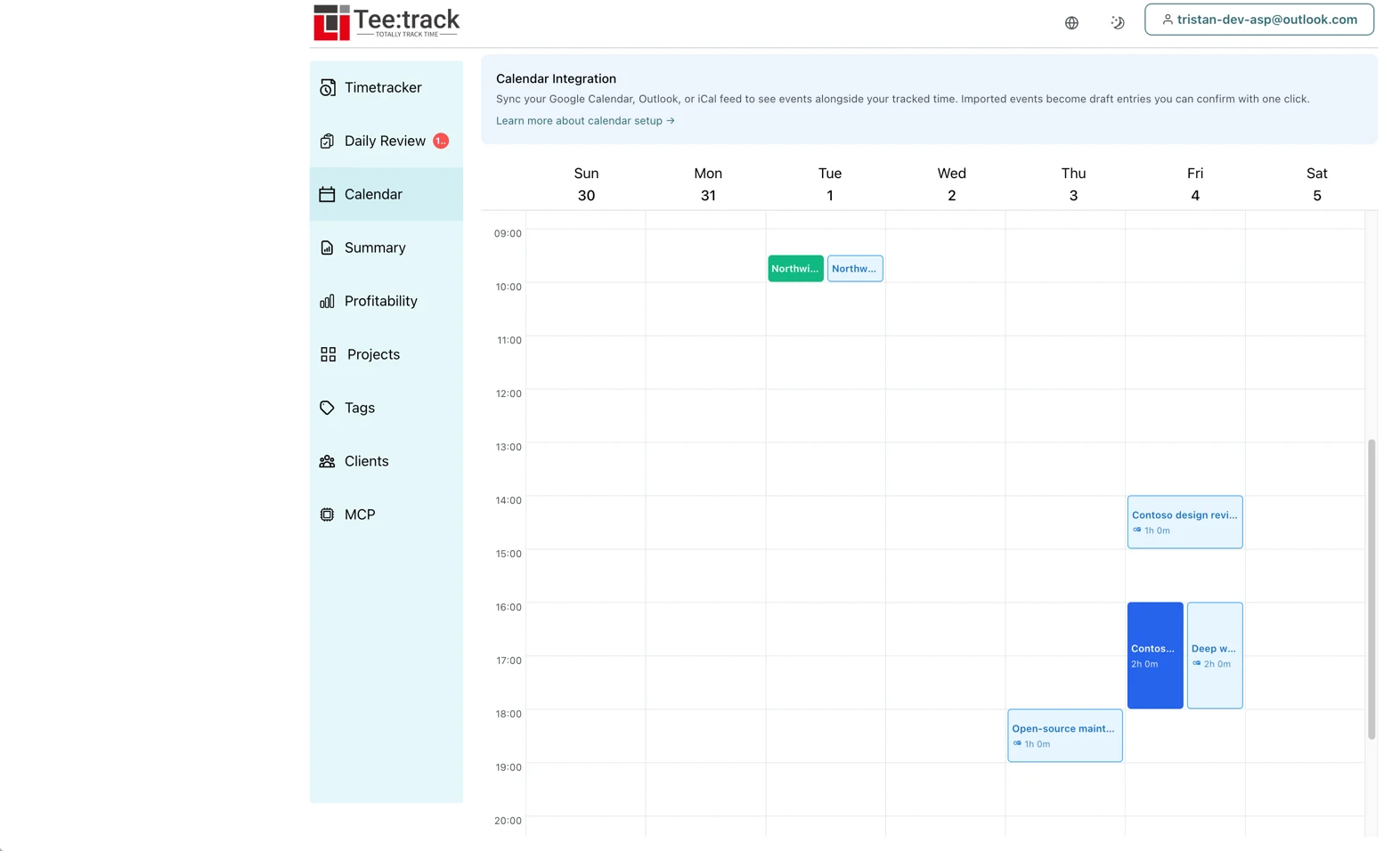
The Calendar page (/calendar) shows your synced events next to your tracked time, in month, week, or day view. Month view marks the days that carry events; week and day view lay them out as real time blocks, so an untracked afternoon is visible as a hole rather than as a missing row in a list. Because the sync window runs 30 days back and 14 days forward, both directions are populated: last month is there to fill in, and next week is there to plan against. Clicking an empty slot in week or day view creates a time entry directly.
Verify It Works
- Create a test event in Outlook — a timed one, in the next day or two. All-day events are deliberately ignored, so they make a poor test.
- In Teetrack, open Settings → Outlook settings and click "Sync now". Scheduled syncs run every 30 minutes on their own; the manual button is limited to once per connection every five minutes.
- Check the connection card: the badge should read "Up to date" and "Last synced" should show the time you just synced.
- Open the Calendar page and find the test event on its day.
- With auto-import on, open Daily Review and confirm the event is waiting there as a draft. Confirm it, then check that it appears in your Summary — that is the full round trip from Outlook to billable time.
Tips & Notes
- Works with Microsoft 365, Exchange Online, and personal outlook.com, hotmail.com, and live.com accounts.
- Sync window: 30 days back, 14 days forward, refreshed every 30 minutes. Events outside that window drop out of the event list; time entries you already confirmed are yours and stay put.
- Auto-import window: 7 days back, 1 day forward — narrower than the sync window on purpose.
- All-day events are never imported and never appear on the calendar page. Cancelled events are skipped too — including a cancellation that stays in your calendar after the organizer calls the meeting off.
- Teetrack will not double-book you. An event is skipped if you already imported it, if you dismissed it before, or if a confirmed entry already covers at least 80% of its duration.
- Move or rename an event in Outlook and its unconfirmed draft follows on the next sync. Delete the event and the draft disappears with it. Once you confirm an entry it is yours: later calendar changes never touch it.
- Private and confidential Outlook events (the "sensitivity" flag) show up in Daily Review as "Busy" instead of their real title, and never receive an automatic project suggestion. The sensitivity value "personal" is treated as a normal event and is not redacted.
- A password change, an MFA reset, or revoked consent puts the connection into "Reconnect needed" with a Reconnect button. Syncing pauses until you reconnect; nothing you already imported is lost.
- "Rate limited by provider" means Microsoft Graph is throttling the account. It clears on its own — the next scheduled sync will pick up where it left off.
- Connection limits by plan: Free connects one calendar, Business up to ten, Pro unlimited. Ten connections is enough for a work tenant plus a personal account plus a handful of shared calendars.
- Disconnecting removes the connection and deletes the unconfirmed drafts that came from it. Every entry you already confirmed stays exactly where it is.
- If you use Teetrack through MCP (Claude, ChatGPT, or Copilot), the tools trigger_calendar_sync, list_calendar_connections, list_calendar_events, and get_calendar_suggestions cover the same ground as this page.