

Summary View
Turn raw time entries into a reviewable table before you hand them to a billing tool, report, or audit
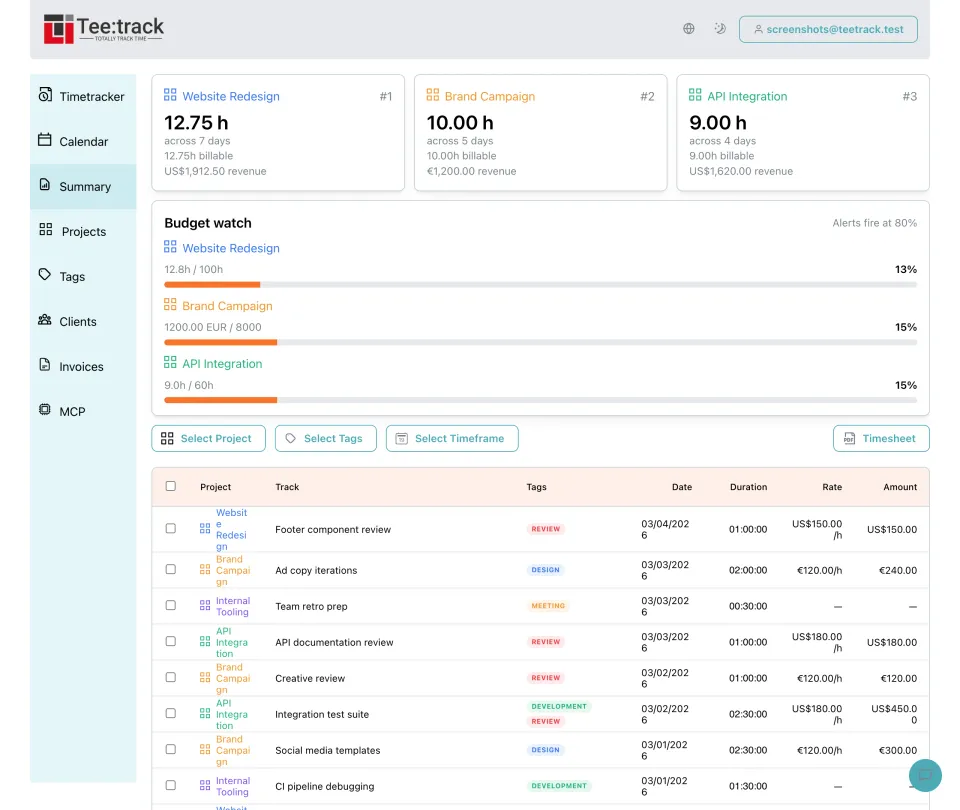
The Summary page collects tracked time into a table that is built for review. Instead of opening individual entries one by one, you can narrow the list by date range, project, client, or tag, sort the result set, and check totals before using the data for timesheets or your external billing tool. It is the place where daily tracking becomes a usable work record.
Why the Summary page matters
- One table for all tracked work: See past time entries together in a structured overview instead of jumping between timers, projects, and separate days.
- Practical filters: Limit the list to a specific date range, project, client, or tag when you need to answer a concrete billing or reporting question.
- Sorting before export: Sort by the fields that matter to your workflow so the table reads logically before you share it internally or generate a document from it.
- Reliable totals: Check combined tracked time after filtering, which helps confirm billing scope and spot missing entries before anything is sent out.
- Useful for billing prep: Review only the project or client you plan to bill, confirm the covered period, and clean up the entries before handing the data to your external billing tool.
- Summary Highlights built in: Highlights surface project totals, top tags, and unusual time spikes alongside the table — useful for at-a-glance review without leaving the page.
How to use the Summary view
- Choose the reporting window: Set the date range first so you only review the time that belongs to the week, month, sprint, or billing period you care about.
- Filter down to the relevant work: Add project, client, or tag filters to isolate one account, one deliverable, or one category of work without hiding the underlying detail.
- Sort and inspect the table: Arrange rows in the order that makes checking easier, then scan descriptions, durations, and assignments to catch anything that needs correction.
- Use the totals for the next step: Once the table looks right, use the filtered totals as the basis for a timesheet, your billing tool, or an internal progress review.
Summary Highlights: what this page helps you verify
- Date range filter — Review only the selected period instead of your full tracking history.
- Project filter — Focus on one project when preparing a client update or checking budget usage.
- Client filter — Limit the table to work associated with one customer across multiple projects.
- Tag filter — Compare categories such as meetings, development, support, or internal work.
- Sortable rows — Reorder the table to make manual review and reconciliation easier.
- Visible totals — Confirm how much time the current filter set represents before exporting or handing it off.
- Billing prep — Check that descriptions and assignments are clean before handing time to your external billing tool.
- Timesheet readiness — Use the reviewed dataset as the source for a professional PDF timesheet.
Frequently asked questions about the Summary view
What can I filter in the Summary? You can narrow the table by date range, project, client, and tag, which makes it easier to answer very specific reporting or billing questions.
Is Summary only for looking back at old work? It is primarily a review tool, but that review step is important because it lets you validate tracked time before it becomes a report, timesheet, or billing handoff.
How does Summary help with billing prep? You can isolate the exact period and project you want to bill, check the entries and totals, and only then continue with PDF generation or handoff to your external billing tool.
Does Summary replace project reports? No. It complements them. Summary is best for table-based review across filters, while project-specific pages remain useful for broader project management context.
Ready to take control of your time?
Start tracking in under a minute. Free forever plan, no credit card.
No credit card required