

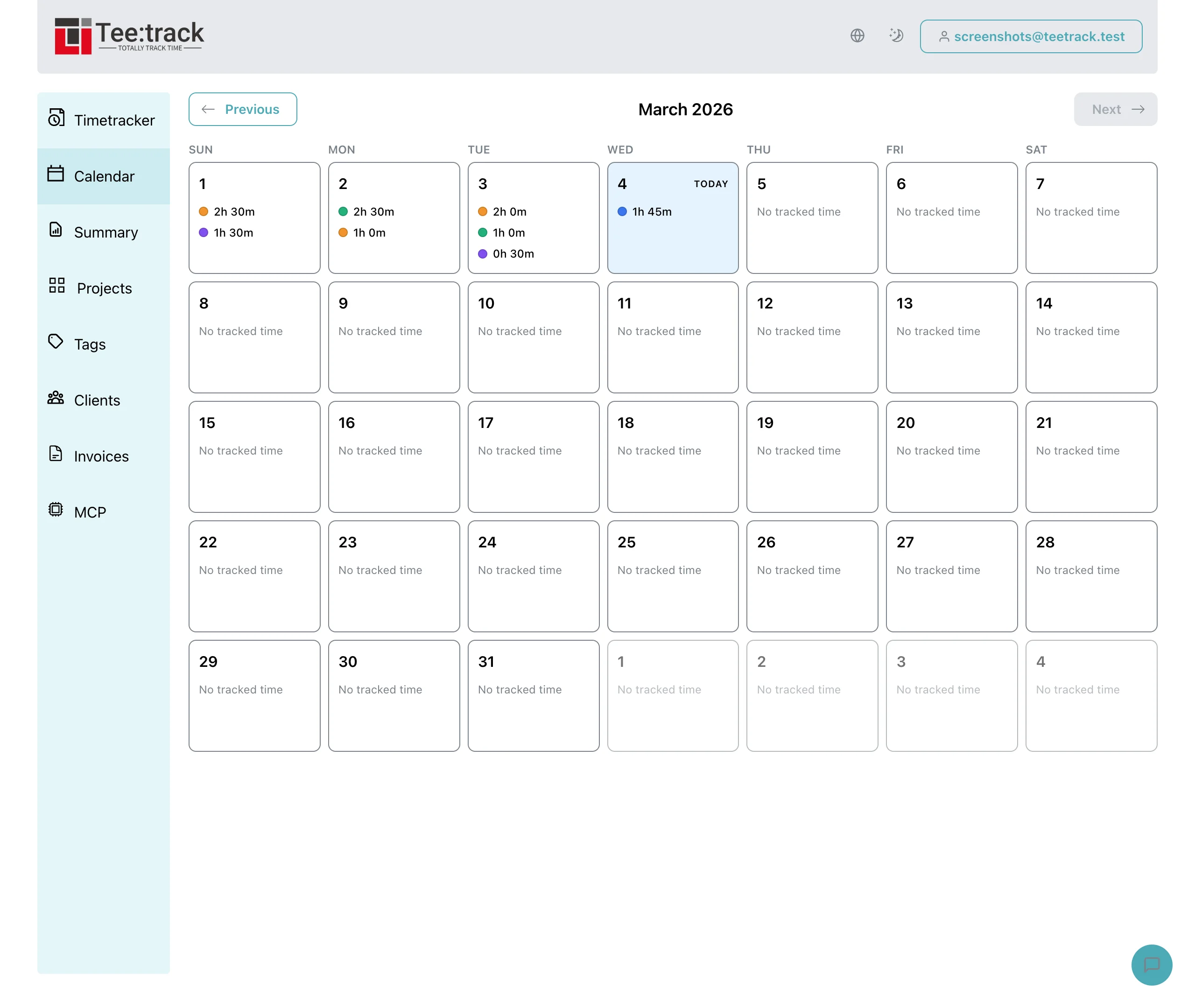
Calendar Integration for Time Tracking — Why It Matters
The problem with manual time tracking
Most professionals spend their day jumping between meetings, deep work, and quick calls. At the end of the week, reconstructing that timeline from memory is an exercise in guesswork. Thirty minutes here, an hour there — the numbers feel right, but they rarely are. Studies consistently show that manual time tracking underreports billable hours by 10–30 percent, simply because people forget entries or round down.
The friction of manual entry makes it worse. Opening a tracker, picking a project, typing a description, and setting start and end times — that is a lot of steps for something that should take seconds. When tracking feels like a chore, people delay it. When they delay it, accuracy drops. When accuracy drops, invoices undercharge or internal reports misrepresent effort.
Calendar integration solves this at the source. Your calendar is already a structured log of your day. Meetings have titles, times, and often attendees that map cleanly to projects. Instead of recreating that data by hand, TeeTrack pulls it in automatically.

How calendar sync changes the workflow
The workflow is straightforward: connect your calendar once, and TeeTrack periodically fetches new events. Each event becomes a draft time entry linked to the day and time slot it occupied on your calendar. Drafts appear in your TeeTrack timeline with a subtle badge indicating they came from a calendar sync.
From there, you review and confirm. Assign each draft to a project, adjust the duration if needed, and mark it as confirmed. Confirmed entries behave like any other time entry — they count toward reports, invoices, and project budgets. The key difference is that you started from real data instead of a blank form.
If a calendar event is irrelevant — a personal appointment that slipped through, or an all-day reminder — you dismiss the draft with one click. TeeTrack remembers dismissed events so they do not reappear on the next sync.
Three ways to connect your calendar
Google Calendar connects via OAuth. Authorize TeeTrack in your Google account and select which calendars to sync. TeeTrack reads event data only — it never creates, edits, or deletes your calendar events. Basic calendar sync is available on all tiers.
Microsoft Outlook also connects via OAuth through Microsoft's identity platform. The same principle applies: read-only access to your calendar events with no modifications to your Outlook data. Works with both personal Microsoft accounts and Microsoft 365 business accounts.
iCal URL is the universal fallback. Any calendar that provides an ICS feed URL — Apple Calendar, Fastmail, Proton Calendar, self-hosted Nextcloud — can be connected by pasting the URL into TeeTrack. The feed is polled at regular intervals to pick up new events.
Draft entries: review before they count
Calendar events are never converted to billable time entries automatically. Every imported event starts as a draft. Drafts do not appear in invoices, project totals, or exported reports. They exist solely as suggestions that you validate before they count.
This design is intentional. Calendars contain noise: all-day events, tentative meetings that got canceled, personal blocks, and recurring placeholders. Blindly importing everything would pollute your time data. The draft layer gives you a filter step without adding friction — reviewing five drafts is faster than creating five entries from scratch.
On Business and Pro tiers, auto-import runs on a schedule so drafts appear without manual triggering. You open TeeTrack and your day is already pre-filled with suggestions waiting for confirmation.
Who benefits most
Freelancers billing by the hour gain the most immediate value. Every missed meeting or forgotten call is lost revenue. Calendar sync ensures that if it was on your calendar, it is in your time tracker — no exceptions.
Consultants juggling multiple clients benefit from the automatic project-matching suggestions. When your calendar events include client names, TeeTrack can suggest the right project assignment, cutting review time further.
Remote teams that rely heavily on video calls and scheduled collaboration sessions find that calendar sync captures the structure of their day with minimal effort. Managers get more accurate project reports without nagging team members about logging their hours.
Getting started
Head to your TeeTrack settings and navigate to the Calendar section. Choose your provider, authorize access, and select the calendars you want to sync. Your first batch of drafts will appear within minutes. From there, review, assign to projects, and confirm — your calendar just became your time tracker.
Related
Related keywords
- calendar integration time tracking
- Google Calendar time tracker
- Outlook calendar sync time tracking
- iCal feed time entries
- automatic time tracking from calendar
- draft time entries calendar sync
- freelancer calendar billing
- meeting time tracking automation
- calendar to invoice workflow
- TeeTrack calendar integration