

Use tags to review project activities
By Tristan Doehl · · Updated
A project identifies the engagement a session belongs to, but it may contain several kinds of work. Tags let you distinguish activities such as interviews, writing, and administration without creating a separate project for every combination.
Choose a small set of useful labels
Start with the questions you want to answer. A research project might use tags for interviews, synthesis, workshops, and writing. Those labels let you compare the activities within one engagement or follow the same activity across several projects.
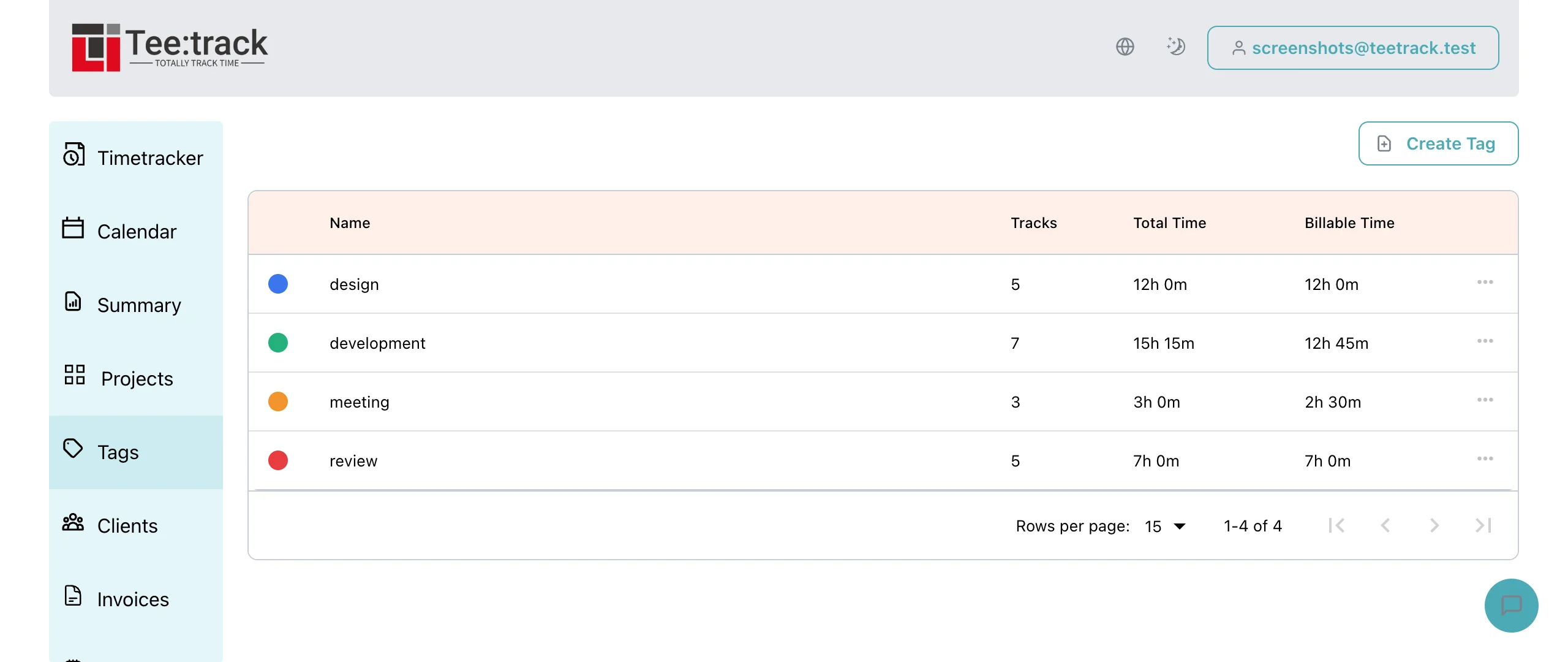
Create the labels on the Tags page with a name and colour. Consistent names make filters easier to use: two labels that both mean “client meeting” split the same activity across separate results.
Label a session when its purpose is clear
Add tags with the tag control on an entry once it has started; this also works while its timer is still running. Entries created from calendar events can receive tags directly in the creation dialog. For example, a session on “Acme research” might have the description “Interviewed two participants about checkout” and the tag “Interviews.” The project identifies the engagement, while the tag makes that activity searchable across projects.
An entry can carry several tags, and its full duration belongs to each tag. A two-hour session tagged “Interviews” and “Synthesis” contributes two hours to each result. Use separate entries if you need to allocate one hour to each activity, and avoid adding overlapping tag totals as distinct working hours.
Investigate a question in Summary
Select a date range and apply the relevant tag filter. Add a project filter when the question concerns one engagement. You can then inspect the descriptions behind a total such as the time spent on interviews for Acme this month.
The Tags page shows usage statistics, including tracked and billable time, across all recorded time without a date-range filter. To answer a monthly or weekly question, use the tag and Timeframe filters in Summary instead of comparing that period with the Tags page’s all-time totals.
Refine labels from the reports you use
If a label does not help answer a recurring question, consider whether it is needed. A short, consistent set is easier to maintain than a detailed taxonomy that changes every week. Tags are most useful when the same activity can be found reliably in the next review.